Most people now work across several Slack workspaces: their company's, a client's shared channels, a couple of communities.
In some of them, a connected enterprise search tool answers a question in plain language and shows where the answer came from.
In the rest, they're back to scrolling and guessing which word someone used months ago.
However, sometimes you need to "find this message." And sometimes you need to "get me the last ten people that spoke about this issue."
Native search handles the first well and the second barely at all.
So learning how to search in Slack means knowing three ways to get knowledge out of it: search it yourself with operators, ask it through an AI assistant connected with Slack MCP, or get answers across Slack and your docs with Slite Agent.
Key takeaways
- ⌘G (Ctrl+G on Windows) searches everything; ⌘F (Ctrl+F) searches the open conversation. Stack
from:in:after:is:thread-in:to narrow. - Native search finds messages. For answers you need something that reads and combines them: Slack AI (paid plans), an AI assistant connected through Slack MCP, or an enterprise search tool like Slite Agent.
- Every method only sees what you can see. Private channels and DMs you're not in are invisible to all of them.
- On the free plan, only the last 90 days are searchable, and data older than a year is deleted.
- If you'll need an answer twice, move it out of the thread into a verified doc.
How does Slack search work?
Slack search is keyword search over the messages, files, canvases, people and channels you have access to, narrowed with filters and operators. On paid plans, Slack AI can also write a short summarised answer above the results.
Either way, the tool is built to find a message. Answering a question is a different job.
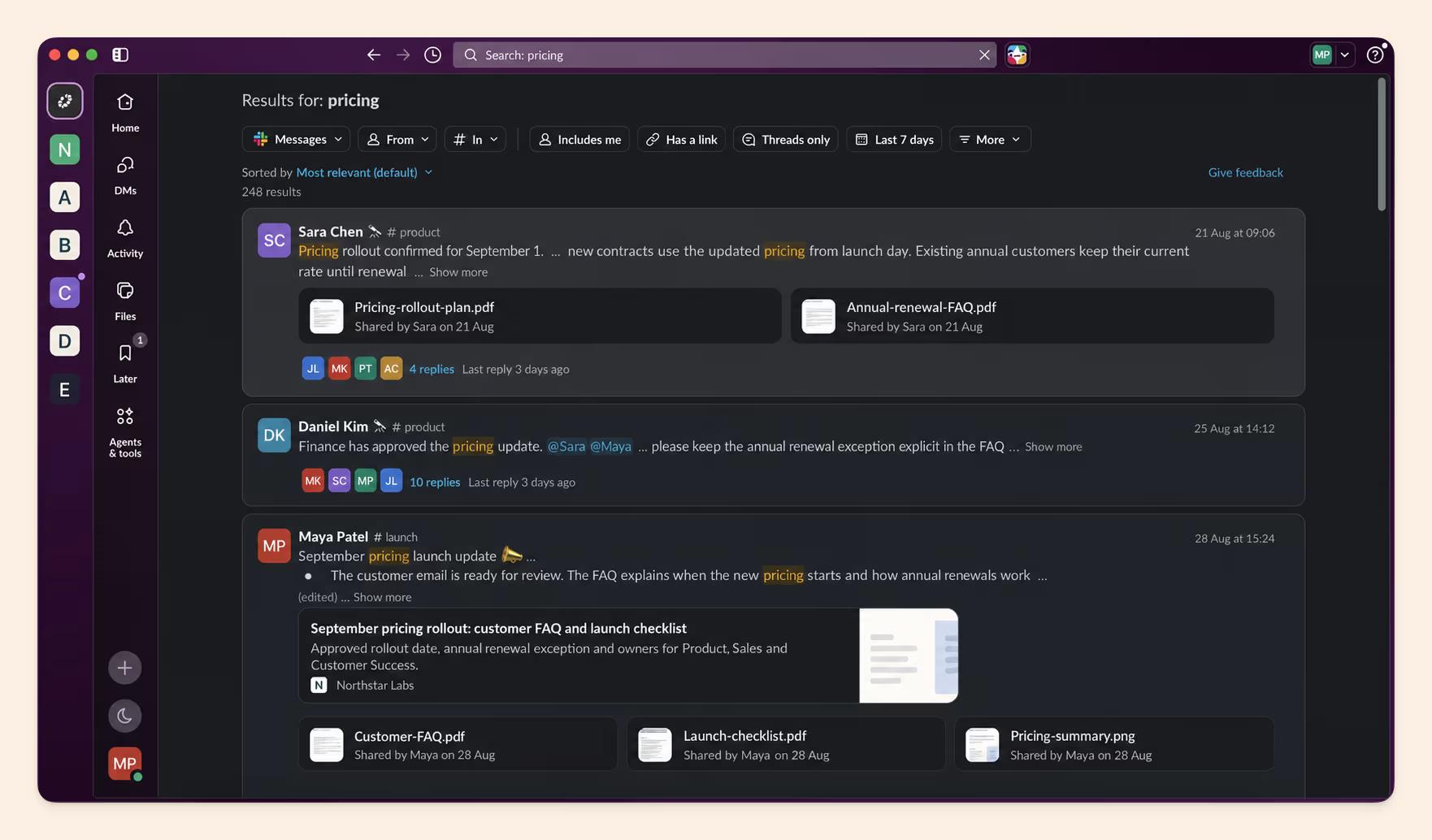
According to Slack's own help centre:
- What it searches. Results are split into Messages, Files, People, Channels and Canvases (mobile adds Workflows). Public channels show up in results even if you haven't joined them. Private channels and DMs only show up if you're a member.
- How results are ranked. Relevance by default. You can switch the sort to most recent, and use Filters to narrow by person, channel, date range and file type. "Hide apps and bots" sits under More filters.
Slack now runs three layers of search altogether:
| Layer | What it does | Plans | Sees |
|---|---|---|---|
| Classic keyword search | Finds messages, files, canvases, people and channels by keyword, operator and filter | Every plan; Free covers the last 90 days | Everything your account can access |
| Slack AI search answers | Slack's paid AI add-on; writes a concise, cited answer from your search results | Business+ and Enterprise+ (since 17 August 2025) | Public channels, plus private channels and DMs you belong to |
| Slack enterprise search | Searches connected apps such as Google Drive and GitHub from inside Slack (launched March 2025) | Enterprise+ | Each connected source, with its permissions applied per user |
All three are permission-aware, meaning they only return what your account is allowed to see.
Want to know where Slack AI stops? Read our guide to AI for Slack and automated knowledge sharing.
Why is improving Slack search so important to companies?
Because for many companies Slack is their accidental knowledge base: it's where people ask and answer questions. Decisions, specs and "how do we…" answers pile up in threads while the wiki goes quiet. Slack keeps all of it, but it isn't built to keep it findable or current, so the knowledge is there and hard to get back out.
Asking in a channel takes ten seconds. Writing a doc takes twenty minutes and a decision about where it should live. So answers land in threads by default, and nobody moves them.
Katerina Alexaki, a Senior Account Executive at Slite who has sat through hundreds of tool evaluations, heard it put bluntly by one prospect: "it's all on Slack, like massive long threads with key decisions, specs." Her summary of what that costs:
"People come and go, restructures happen, and the real decisions, specs and knowledge all live buried in Slack threads that nobody can find six months later."
That's what makes it an accidental knowledge base.
A real one holds the current, agreed answer in one place, with someone responsible for it. Slack holds every version of the answer, in the order people typed them, with no owner and no expiry date.
Search alone struggles with that. The answer is often spread across several threads, contradicted a week later, or dependent on context that was never written down.
I maintain Slite's Help Centre, including the docs on connecting Slack to Slite Agent, and I join customer calls when the questions get technical. From that seat, the knowledge is rarely missing. Getting it back out, quickly enough to use and with enough confidence to act on, is the hard part.
Across several workspaces, the tools you can connect vary too.
So the useful question is broader than "how do I search Slack?". It's "how do I get knowledge out of Slack fast, and trust what I get?"
Want the longer version of what a knowledge base is for? Read our guide to what a knowledge base is.
What's the best way to search Slack?
The best way to search Slack depends on what type of information you're trying to extract, as there are typically three ways to go about it: native search, an AI assistant with Slack MCP, and an enterprise search tool.
In short:
- Use native search with operators when you remember roughly where and when something was said.
- Use an AI assistant with Slack MCP when you need a summarised answer from Slack alone.
- Use an enterprise search tool like Slite when the answer spans Slack, docs and other tools, or needs to stay true.
That said, these three are basically three different jobs, so here's a table overview below to help you make sense of their entire scope:
| Native Slack search | AI assistant + Slack MCP | Slite Agent (Slack as a connected source) | |
|---|---|---|---|
| Best for | Finding a specific message or file | "Summarise what #launch decided" | "What's our current policy on X?" across Slack, docs and tools |
| How you use it | Search bar, operators, filters | Claude, ChatGPT or another assistant with Slack's official MCP server | @Slite in Slack, the Slite app, or Claude via the Slite MCP |
| What it sees | Everything you can access in Slack (plan history limits apply) | What your Slack user token can access | Selected public and private channels you're in, plus Slite docs and 20+ connected tools; no DMs |
| Strengths | Free, instant, precise | Natural language; summarises across threads | Cited answers across tools; outdated docs excluded; can draft the answer into a doc |
| Limits | Keyword-literal; no synthesis | Slack only; needs admin approval; chaining several MCPs is slower and less reliable | Needs setup; only the channels you connect; connected tools need a paid plan |
| Cost | Included on every plan (AI answers on Business+ and Enterprise+) | Your AI assistant plan, plus workspace admin approval | Slite Pro plan for answers across connected tools |
Search Slack manually: the operator cheat sheet
Slack search operators are modifiers you type into the search bar, such as from:@sara in:#product after:2026-01-01, that narrow results by person, place, date or content. They can be stacked in any combination.
Five of them cover most searches:
from:,in:,before:/after:,is:thread,- and the
-that excludes.
Open search and scope it
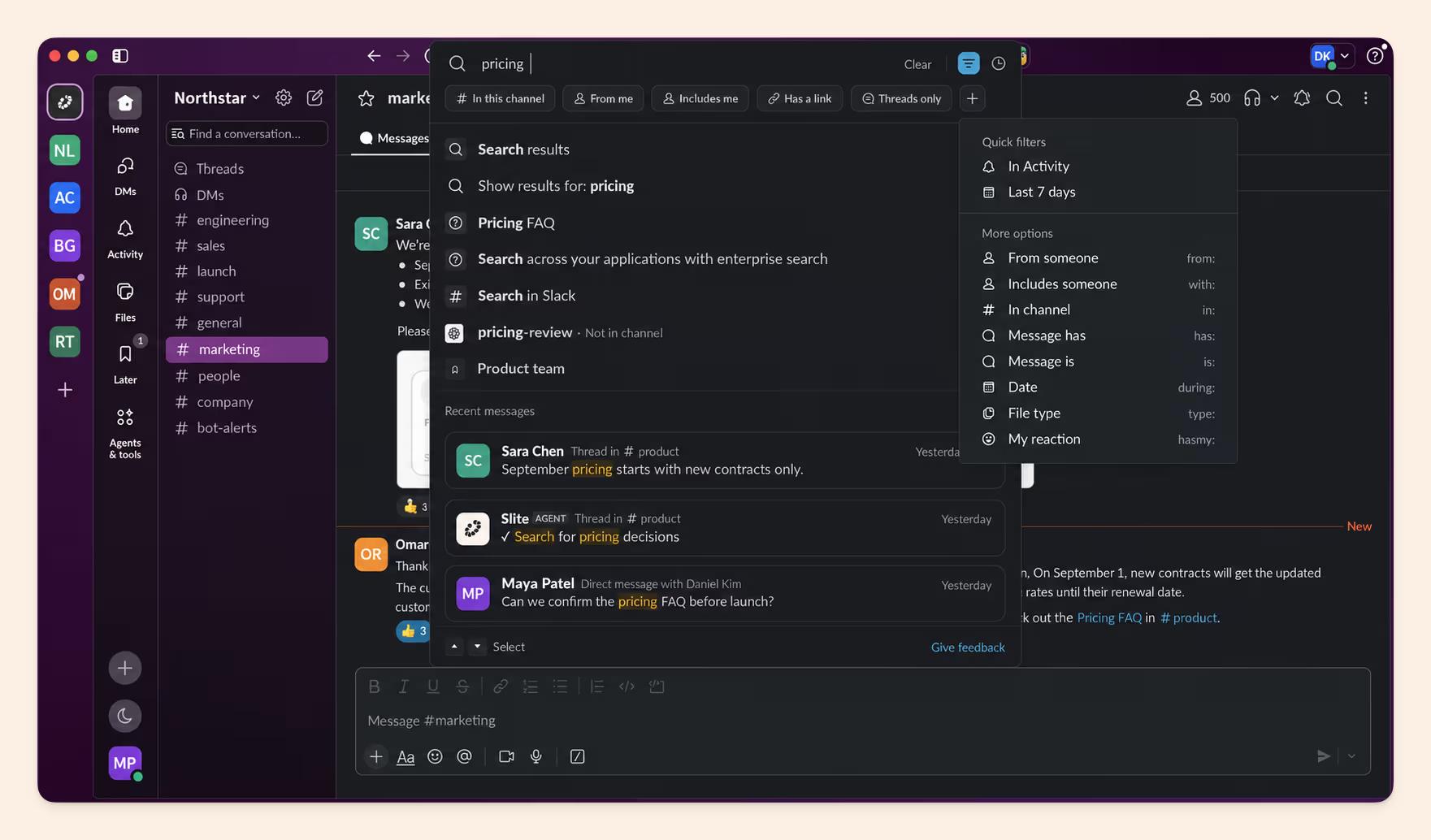
Start with the right box. ⌘G (Ctrl+G on Windows) opens a search across everything you can access. ⌘F (Ctrl+F) searches only the conversation you have open. On mobile, use the Search tab.
- Result tabs: Messages, Files, People, Channels and Canvases on desktop; mobile adds Workflows.
- Recent searches: click the clock icon in the search field to rerun one.
- Filters: person, channel, date range and file type, plus "Hide apps and bots" under More filters.
Use the operator table
Slack documents each of these operators on its help centre or its blog. Copy, paste, and swap in your own names.
| Operator | What it does | Example | Watch out for |
|---|---|---|---|
| `"phrase"` | Finds an exact phrase | `"marketing report"` | Too strict if you misremember one word |
| `-word` | Excludes results containing a word | `marketing -report` | Also removes useful results that mention it in passing |
| `-in:` / `-from:` | Excludes a channel, conversation or person | `report -in:#team-marketing` | The dash works on any modifier |
| `word*` | Matches words that start with those letters | `rep*` | Needs at least three characters |
| `in:` | Searches one channel, DM or sidebar section | `in:#product`, `in:@sara` | `in:@sara` means your DM with Sara |
| `from:` / `from:me` | Messages from a specific person, or from you | `from:@sara` | Uses the person's display name |
| `with:` | Threads and DMs that include a specific person | `with:@sara` | Useful for group DMs you can't name |
| `to:me` | Direct messages sent to you | `invoice to:me` | DMs only |
| `before:` `after:` `on:` | Messages around a specific date | `after:2026-01-01`, `on:2026-03-14` | Test boundary dates if the exact day matters |
| `during:` | Messages from a month or year | `during:august`, `during:2025` | Month or year only |
| `has::emoji:` | Messages with a specific emoji reaction | `has::eyes:` | Matches reactions, so it helps find what people flagged |
| `has:pin` | Pinned messages | `pricing has:pin` | Only as good as your team's pinning habit |
| `has:reaction` | Messages with any reaction | `launch has:reaction` | Broad on busy channels |
| `has:star` | Items you starred in the past | `has:star` | Legacy name; Slack now calls these saved items |
| `is:saved` | Items in your saved items | `is:saved contract` | Only your own saves |
| `is:thread` | Searches within threads | `pricing is:thread` | Decisions often live here |
| `creator:` | Canvases created by a specific person | `creator:@sara` | Canvases only |
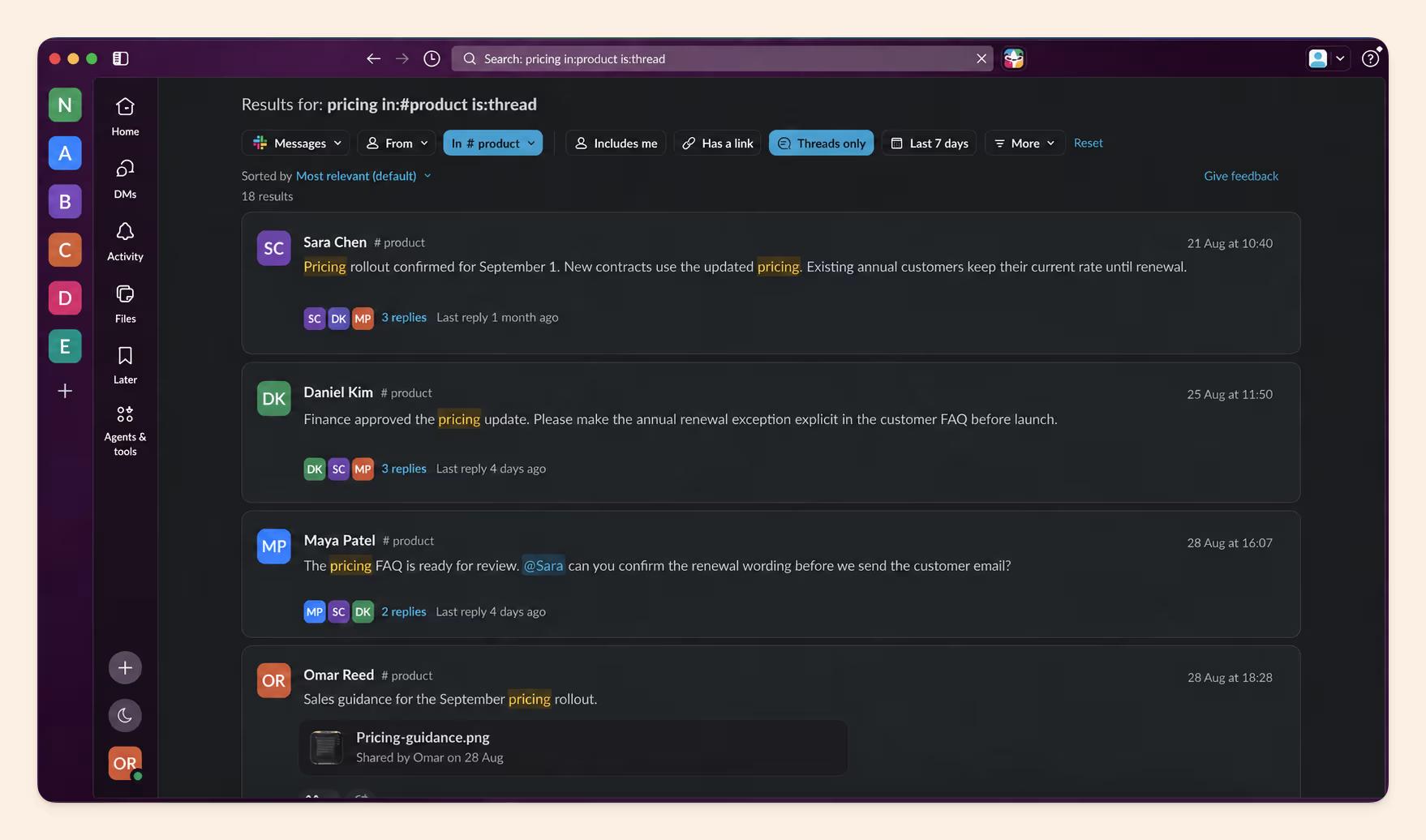
Search DMs, group DMs and threads
in:@person searches your direct messages with that person. with:@person finds threads and DMs that include them. to:me returns only direct messages sent to you.
Group DMs are harder, because you rarely remember who was in them. Stack what you do remember, such as from:@sara from:me plus a topic word, then add after: to box in the time. Or sort to:me by most recent and step back through it.
For decisions, add is:thread. The answer to "what did we agree?" usually sits in the replies, below a top-level message that only asked the question.
Find a channel, search inside it, or exclude it
"Search not in channel" means three different things, so it helps to separate them:
- Finding a channel. Type its name and open the Channels tab.
- Leaving a channel out. Add
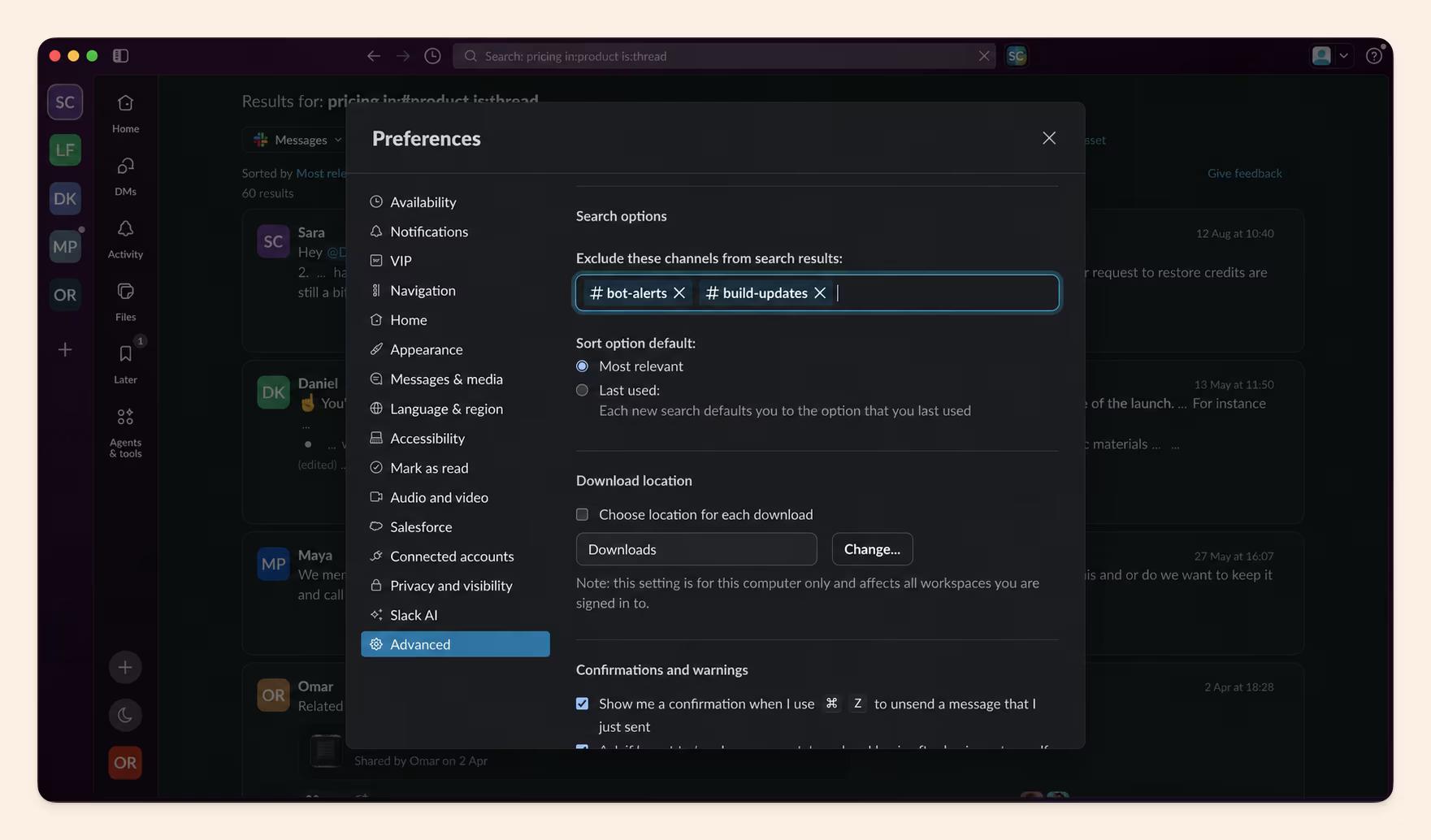
-in:#channelto a single search. To exclude noisy channels permanently, go to Preferences → Advanced → Search options and add them there. It's the right home for bot-heavy channels. - Content in channels you're not in. Public channels you haven't joined still appear; private channels you're not in never do.
Build a search in three passes
The fastest way to find a specific message is to start broad and add one constraint at a time. Say you're looking for the pricing decision the product team made this year.
- Pass one:
pricing. Every mention you can see. Too many, but it shows where the conversation happened. - Pass two:
pricing in:#product. The right room, without the sales and support noise. - Pass three:
pricing in:#product during:2026 is:thread. Only this year's threads, where decisions get argued out. - Optional finish: add
has:pin. If someone pinned the final call, only pinned messages remain.
A second example, for people rather than topics: "What did Sam send me before March?" becomes in:@sam from:@sam before:2026-03-01.
Troubleshoot "I know it's in here somewhere"
When a search you're sure should work comes back empty, check these in order:
- Is the workspace on the free plan? Messages older than 90 days are hidden, and messages older than a year are deleted.
- Are you filtering something out? Check for a permanently excluded channel, or "Hide apps and bots" switched on.
- Are you using the right name?
from:works on display names, which may not match what you call the person. - Is your phrase too strict? Drop the quotes, use a wildcard (
onboard), or search for a rarer word from the same message. - Still nothing? It may be in a space you can't see, or it may never have been written in Slack at all. Either way, it's time to switch methods.
When native search is the right tool, one starter query covers most cases. Keep it in your clipboard and fill in the blanks:
keyword in:#channel from:@person after:YYYY-MM-DD is:threadAsk Slack through an AI assistant with Slack MCP
Yes, you can search Slack with Claude or ChatGPT. Slack's official MCP server connects AI assistants to a workspace through your own Slack permissions, so you can ask a question in plain language and get a summarised answer. A workspace admin has to approve the connection first.
Slack announced its official MCP server in October 2025 and made it generally available on 17 February 2026, alongside its Real-Time Search API. The server is remote and hosted by Slack. You sign in with OAuth using your own user token, so the assistant sees what you see, and a workspace admin approves the app before anyone can use it.
It's very good at synthesis inside Slack, however the major downside is that it doesn’t see anything happening in tools such as CRMs, PM tools, dev tools, and similar outside it.
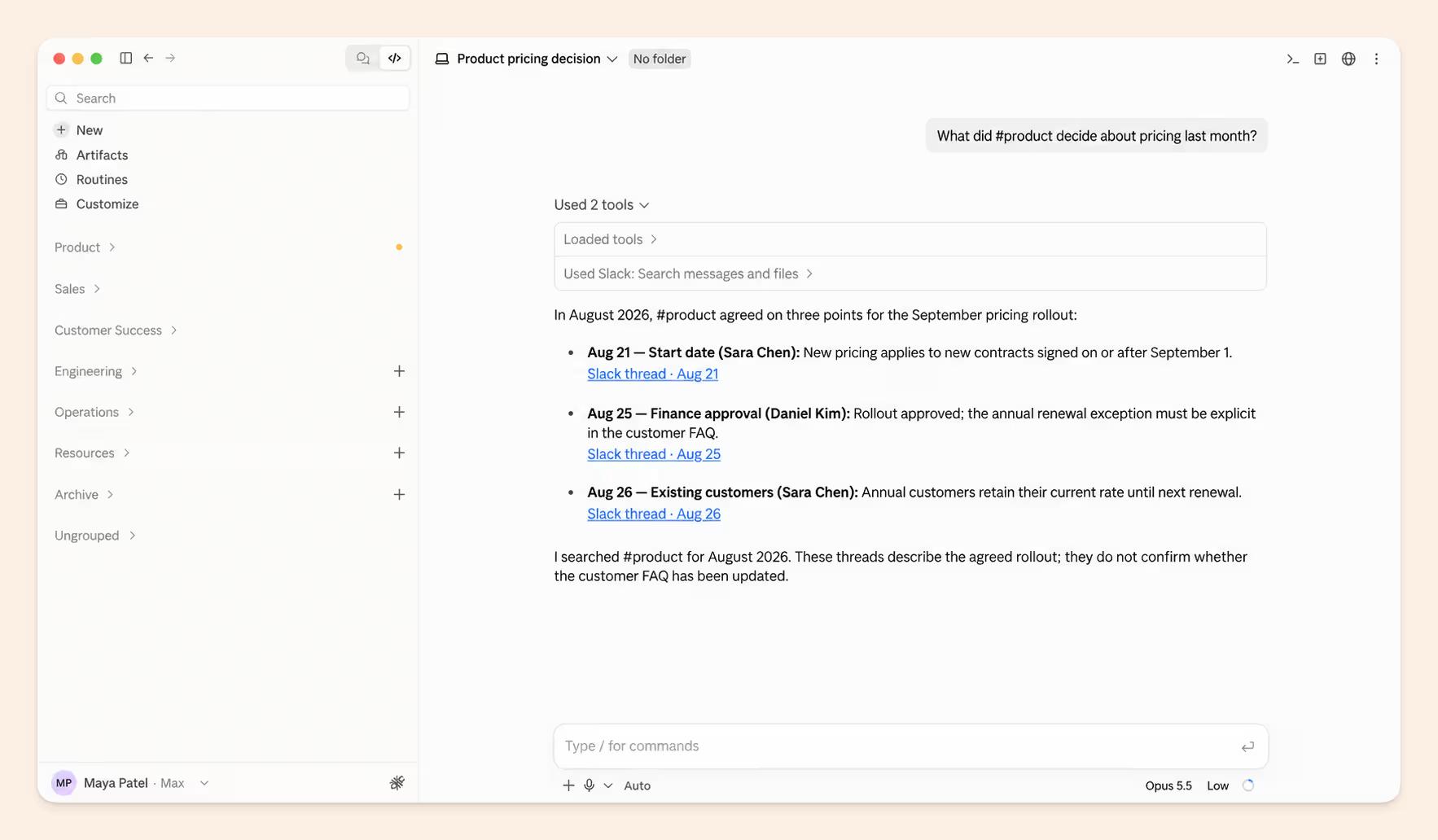
This is where the "name last ten people to speak about X" question becomes possible.
Prompts that work well:
- "What did #launch decide about pricing last month?"
- "Who has talked about SSO issues in the last quarter, and what did they say?"
The limits are structural:
- Slack only. If the answer lives partly in a doc, a ticket or a repo, the Slack MCP won't see that part.
- Chaining MCPs costs you. With Slack, Drive, Linear and GitHub as separate MCPs, the assistant picks tools one at a time. Each hop adds time and tokens, and another chance to skip the source that mattered.
- Admin access and permissions. Connecting an AI tool to a workspace needs that workspace's admin to approve it. In a community or a client's workspace you're rarely the admin, so you're back to native search.
An assistant's answer is only as complete as the sources it can reach in one step.
Get answers across Slack and your docs with Slite Agent
Enterprise search for Slack is a tool that searches Slack together with your docs and other apps, respects each person's permissions, and returns one cited answer instead of a list of messages. Slite Agent does this inside Slack (@Slite), in the Slite app, and in AI assistants through the Slite MCP.
When the answer lives in Slack and somewhere else, or needs to stay true, search the knowledge rather than the chat.
Slite is an AI knowledge base designed to keep answers current: docs have owners, get verified, and can be marked outdated when they stop being true. Slite Agent is the AI agent on top of it. It answers questions from your Slite docs and from connected tools, with sources, and it respects what each person is allowed to see.
Want to go deeper on how enterprise search works? Read our guide to enterprise search or compare the best enterprise search apps.
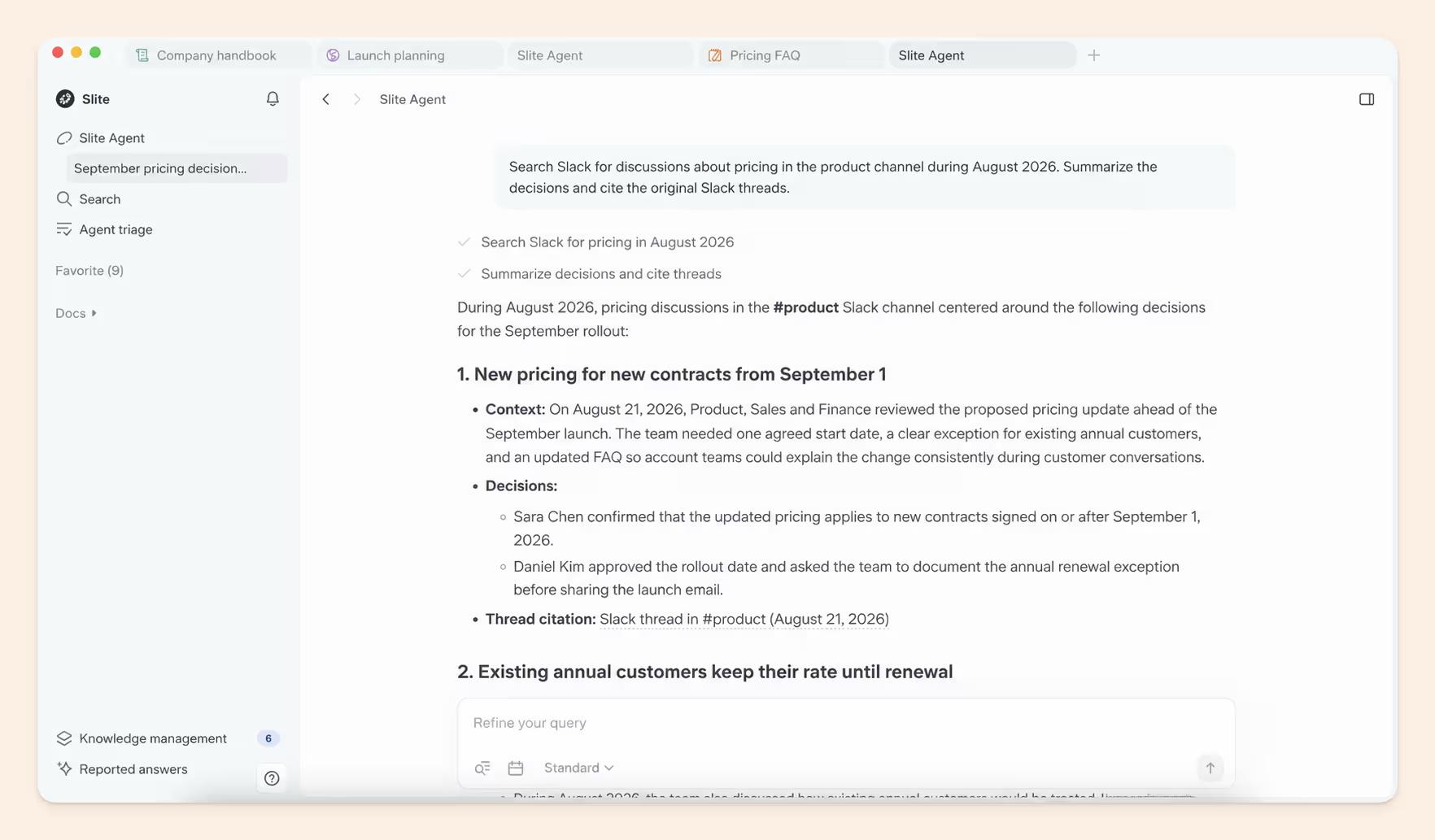
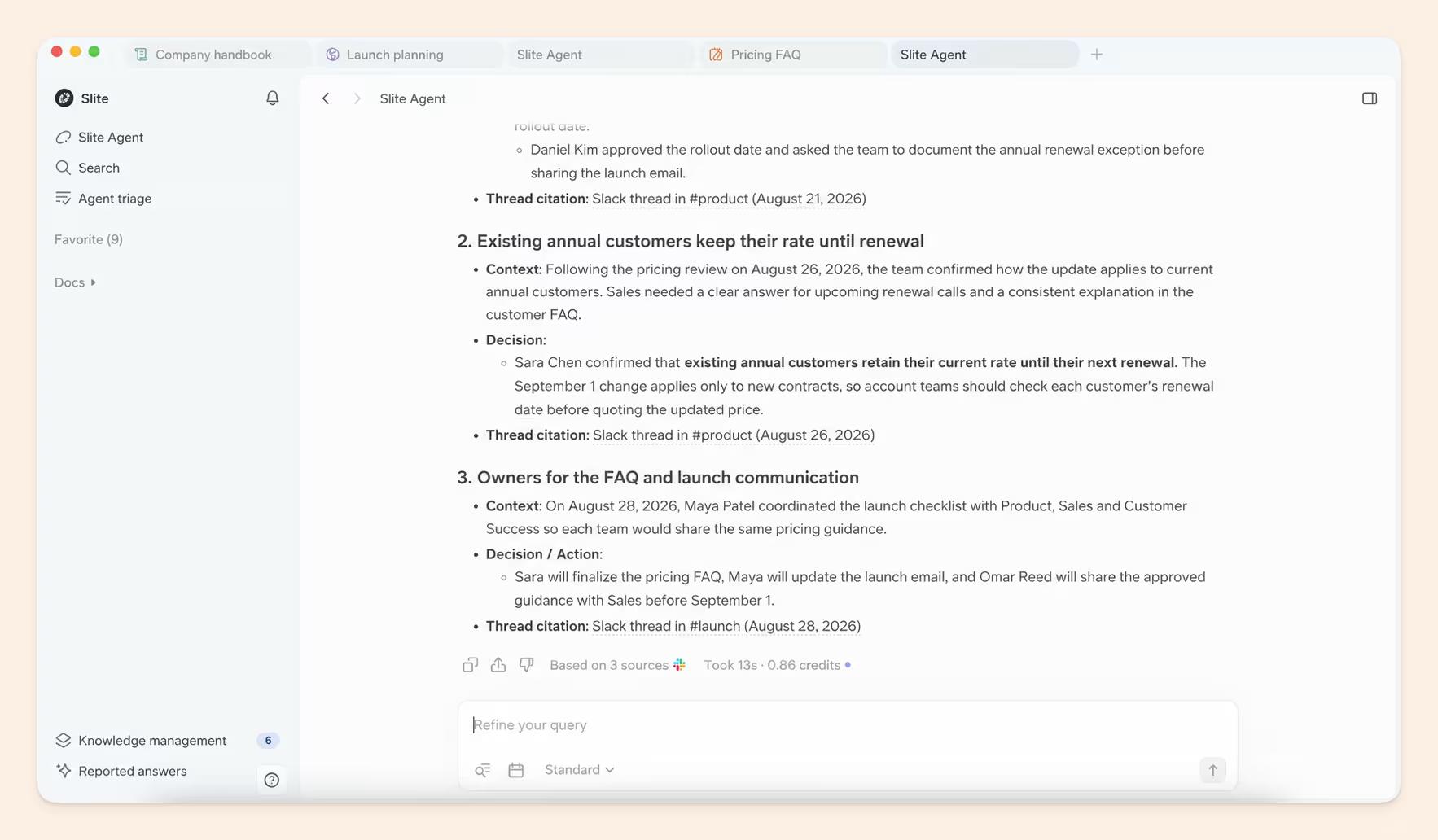
Here's how it works with Slack specifically:
- Ask where people already ask. Mention @Slite in a channel it's been added to, or DM it, and it replies in the thread with a cited answer.
- Slack as a connected source. You choose which public and private channels to sync. Messages sync at thread level and new ones appear within seconds.
- What it doesn't index. DMs, bot and workflow messages, and file attachments are not synced. If the answer only exists in a DM, Slite Agent won't find it.
- Permissions are mirrored. Identities are matched by email, and you only get answers from channels you belong to. An answer posted in a public channel is visible to that channel.
- Outdated docs are excluded. Docs marked outdated don't feed answers, in Slack or anywhere else.
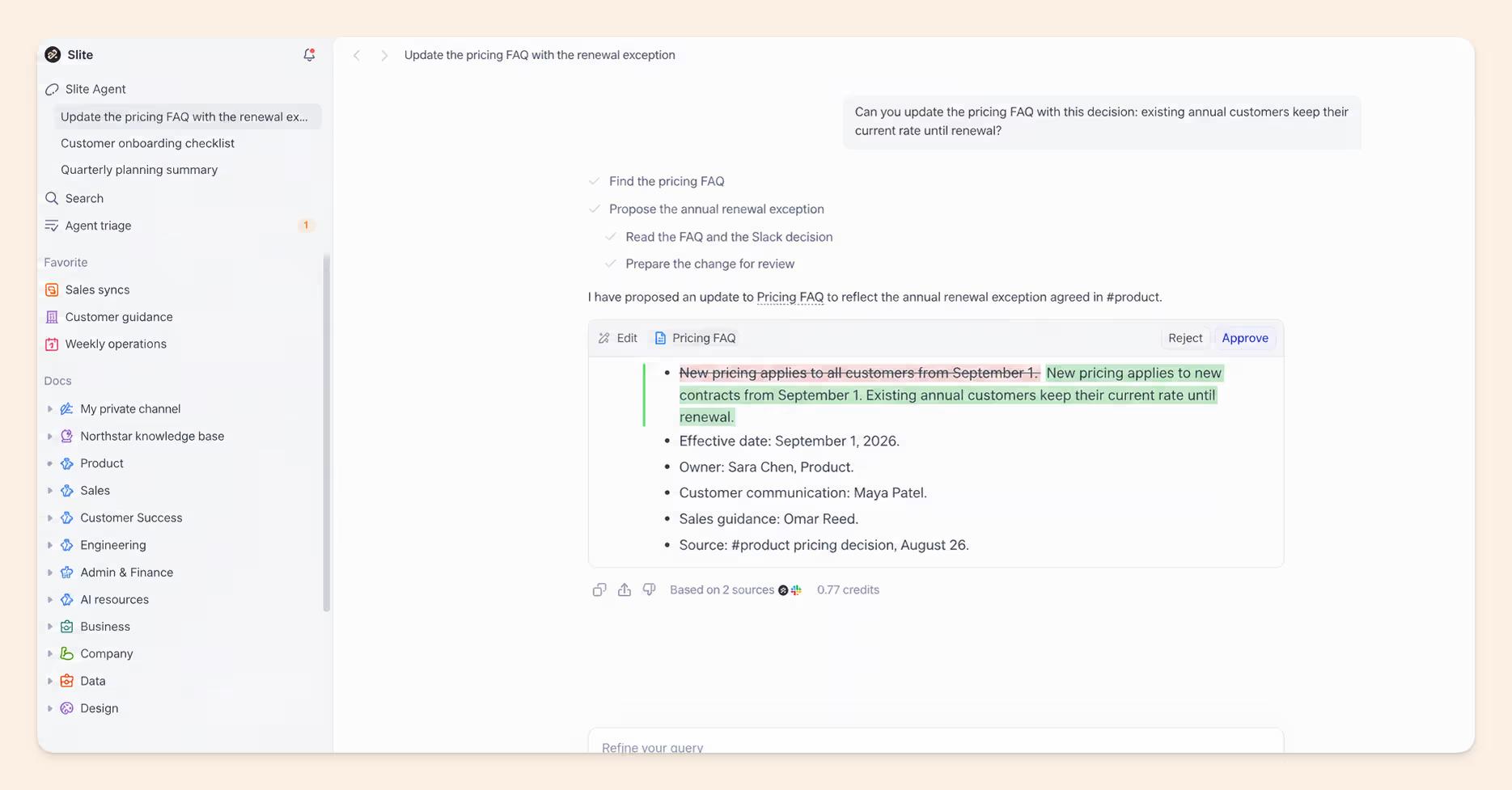
- Capture happens in the thread. Ask @Slite to turn the thread into a new doc or update an existing one, and the draft goes to a person for review. There's no one-click thread-to-doc button yet; it's a prompt.
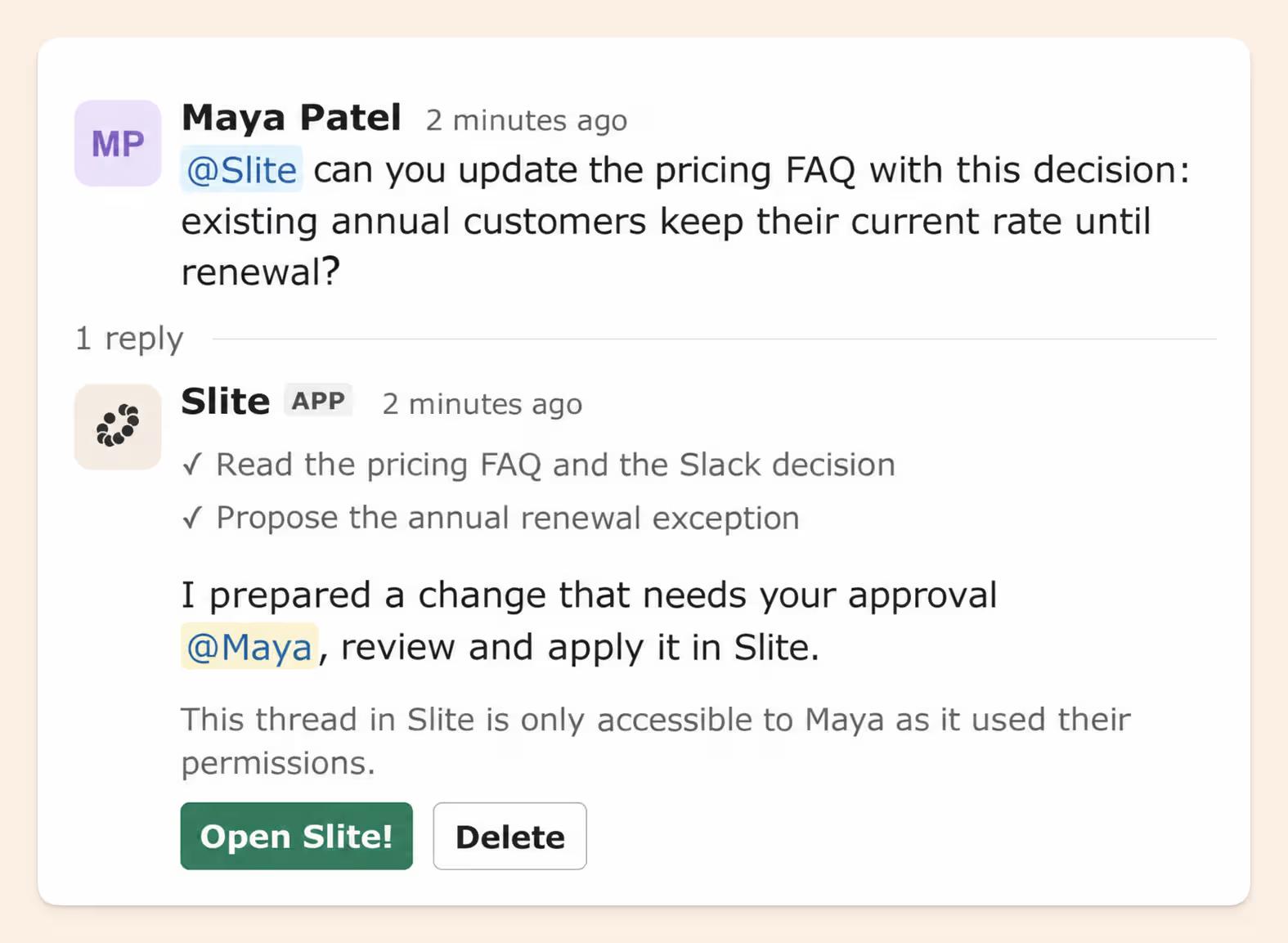
In day-to-day use, it feels like asking a colleague who has read every thread. You type the question into the Slite search bar, or mention @Slite in the channel where it came up, and a summarised answer lands in the thread, with links to the Slack threads and docs it was pulled from.
On plans: Slite Basic answers from Slite docs only, while Pro answers across connected tools, Slack included.
If your team already asks questions in Slack, the quickest test is small: connect two or three busy channels to Slite Agent, and the next time someone is about to ping a colleague, have them @Slite first.
Older history and Slack Lists
Older channel history may need a manual import, and Slack Lists aren't indexed yet.
Since 2025, Slack has applied stricter history rate limits to apps outside its Marketplace, so older channel history may not sync fully on its own; uploading a standard Slack export zip fills the gap. And Slack Lists are a separate API surface the integration doesn't cover yet, so answers captured through Workflow Builder forms stay out of reach. I filed that request myself.
Slack MCP vs Slite MCP
The Slack MCP gives an AI assistant Slack alone; the Slite MCP gives it Slack plus your knowledge base and the rest of your tools.
| Slack MCP | Slite MCP (api.slite.com/mcp) | |
|---|---|---|
| Connects to | Slack only | Your Slite knowledge base plus 20+ connected sources, Slack included |
| Searches | Slack, through your own user token | All connected sources in parallel |
| Can write docs? | Not into a knowledge base | Yes, the answer can be saved as a Slite doc |
| Best when | The question starts and ends in Slack | The answer is in Slack, a spec and last month's ticket |
If the answer lives in more than one tool, one connection that spans them beats chaining several MCPs.
Know what each method can and can't see
Can you search Slack channels you're not in? Public channels, yes, even ones you haven't joined. Private channels and DMs you're not a member of, no, and no AI tool gets around that. Free plans also limit search to the last 90 days of history.
"No results" usually means "not visible to you" or "no longer exists". A wrong operator is the less likely explanation.
| Content | Native search | Slack AI answers | Slack MCP | Slite Agent | Free plan |
|---|---|---|---|---|---|
| Public channel you've joined | Yes | Yes | Yes, within your access | Yes, if the channel is connected | Last 90 days |
| Public channel you haven't joined | Yes | Yes | Depends on workspace settings | No, answers come from channels you're a member of | Last 90 days |
| Private channel you're in | Yes | Yes | Yes, within your access | Yes, if the channel is connected | Last 90 days |
| Private channel or DM you're not in | No | No | No | No | No |
| Your own DMs | Yes | Yes | Yes, within your access | No, DMs are not indexed | Last 90 days |
| Archived channel | Yes, on paid plans | Depends on workspace settings | Depends on workspace settings | Depends on workspace settings | Depends on workspace settings |
| Deleted channel | No, messages are permanently deleted | No | No | No | No |
| Slack Connect channel | Depends on workspace settings | Depends on workspace settings | Depends on workspace settings | Depends on workspace settings | Not available; every org in the channel must be on a paid plan |
| Canvases | Yes (Canvases tab, `creator:`) | Depends on workspace settings | Depends on workspace settings | No, only text messages sync | Depends on workspace settings |
| Files | Yes (Files tab) | Yes | Depends on workspace settings | No, attachments are not indexed | Last 90 days |
Two things the table can't show. On the free plan, data older than a year is deleted, and upgrading won't bring it back (Slack's free-plan limits). On paid plans, retention policies (including each Slack Connect partner's own) and Enterprise+ AI exclusions can hide content silently, which looks exactly like a bad search.
Move the answers you need twice out of Slack
Slack is bad at finding decisions because it stores messages, and a decision is rarely a single message. Decisions spread across threads, get contradicted later, or never get written down, so even a perfect search returns fragments.
Search, AI assistants and enterprise search all get faster at finding. Only a doc with an owner keeps the answer true.
When search fails, it usually fails in one of three ways:
- It's in a space you can't see. A private channel or someone else's DM. No tool will surface it for you, by design. Ask a member, then write the answer down somewhere you can both see.
- The thread was right, then got contradicted. An engineering leader at a cloud-infrastructure company described the loop: "after a month or two months or three months, some of that information is stale. And then unfortunately, we revert back to Slack… it just becomes all over the place." This is knowledge drift, and it's why stale documentation is dangerous rather than merely untidy.
- The answer was never in Slack. Plenty of teams have a wiki and still route questions through chat. An engineering team at a fintech infrastructure company described docs spread across GitHub, a docs site and Google Docs, and said people "end up discovering asking in Slack." The answer lived in someone's head.
The fix for all three is the same habit. Capture the decision while the thread is fresh, by asking @Slite in the thread to draft the doc, then have its owner verify it. Skip that step and better search just returns the wrong answer more quickly, which is why a search layer over stale content only finds stale answers faster.
Final thoughts
Slack became your knowledge base by accident, so getting answers out of it is a choice of method. A better keyword won't fix it. Operators are the right tool when you remember where and when something was said. An AI assistant with Slack MCP is right when the answer is in Slack but scattered. Slite Agent is right when the answer spans Slack and everything else, and has to be the current one.
The signal to watch for is time. If a search takes more than two minutes, the answer deserves a doc. Write it once, give it an owner, and let the next person ask @Slite instead of scrolling.
If that's a familiar two minutes on your team, connect Slack to Slite Agent and try it on the questions you keep answering twice.
FAQ
How do I search Slack by date?
Use before:, after: or on: followed by a date, such as after:2026-01-01. For a whole month or year, use during:august or during:2025. They stack with other operators, as in pricing in:#product after:2026-01-01.
How do I sort Slack search results by date?
Switch the sort from relevance to most recent in the Sort dropdown above your results (on mobile, in the Sort menu). That orders matching messages newest first. Pair it with after: or during: to limit how far back the list goes.
How do I exclude a channel from Slack search?
Add -in:#channel to your search, for example report -in:#team-marketing. To exclude it from every search, add it under Preferences → Advanced → Search options.
How far back can Slack search go on the free plan?
The last 90 days. Messages and files older than one year are deleted on a rolling basis, and upgrading can't recover them.
Are archived Slack channels searchable?
Yes, on paid plans. Archived channels are closed to new activity, but their history stays searchable. Deleting a channel permanently deletes its messages.
What's the difference between Slack MCP and the Slite MCP?
The Slack MCP connects an AI assistant to Slack only. The Slite MCP connects it to your Slite knowledge base and 20+ connected sources, Slack included, searched in parallel, and can write answers back into a doc.
Can AI search Slack DMs?
Slack AI answers and Slack MCP work within your own access, so they can draw on DMs you're part of. Neither can see DMs you're not in. Slite Agent does not index DMs at all; it syncs selected channels only.
Does Slack AI find more than regular search?
No. Slack AI answers draw on the same information you can already access: public channels plus the private channels and DMs you belong to. It adds a written summary, on Business+ and Enterprise+.