A project management tool is software that helps a team plan work, assign it, track it, and see where it stands.
It holds tasks, owners, dates, and dependencies in one shared place so nobody has to reconstruct the plan from chat threads or a spreadsheet.
A launch touches marketing, product, and support. A migration touches engineering and finance.
People sit in different time zones and different companies, and the agile project management approach only covers part of how the work actually moves.
The plan drifts, and the reason a decision was made drifts with it.
This guide compares 15 project management tools: what each one is best for, what it costs in 2026, and where each one falls short.
What is a project management tool?
A project management tool is software for planning, assigning, and tracking the work inside a project. It keeps tasks, owners, deadlines, and dependencies in one place, and shows progress against the plan without anyone chasing a status update.
Some tools specialise in one view, such as a board or a Gantt chart, and some try to cover every stage of delivery.
The category is broad enough that two tools called "project management software" can barely overlap.
If you want the wider picture of methods, roles, and process, our complete guide to project management covers the discipline rather than the software.
Types of project management tools
Five shapes cover almost everything on the market:
- Task and kanban tools: cards, lists, and boards for day-to-day execution.
- Gantt and scheduling tools: dependencies, critical path, and resource calendars for work with hard sequencing.
- Work operating systems: configurable databases and views that stretch across departments.
- Issue trackers: ticket queues and cycles built around engineering throughput.
- Docs and knowledge tools: the written layer that holds specs, decisions, and context.
Nowadays, the first four answer what is being done and by whom. Docs answer why it is being done and what was decided.
Teams routinely keep the tracker they already have and add a documentation layer beside it, and we see that pairing most often alongside Asana, Linear, Jira, Trello, ClickUp, and Monday.
What project management tools are used for
Project management tools cover most of the coordination work around a project, not just the task list. Teams use them to plan and schedule, to track time and budget, to hand work between people, and to keep the paperwork of a project in one findable place.
The most common jobs they get put to are:
- Project planning, scheduling and time management
- Time tracking
- Portfolio management
- Task delegation and task management
- Budgeting, invoicing and general finances
- Teamwork and team collaboration
- Meetings and communication
- Project documentation and file management
- Resource management, resource allocation and monitoring
- Project monitoring, evaluation and assessment
4 reasons you need a project management tool
Teams usually go looking for a tool at one of three moments: a new hire who cannot find anything and burns two weeks asking, a customer-facing mistake traced back to someone working from the wrong page, and a coordination cost that has grown too large to keep absorbing.
Here is what a tool actually changes.
1. Improve collaboration
Planning, executing, and launching a project takes a village. Project teams are usually made up of people from different departments, companies, and sometimes industries. They often do not share a schedule or a time zone.
That is what makes a project management tool useful. It gives everyone one schedule and one place to communicate about the work, keeps people accountable and up to date, provides shared calendars and timelines, and makes it visible when something is about to fall through the cracks.
2. Help you stay organized
Nothing produces piles of documentation quite the way project management does. To stay organized, keep track of your files, and share them in a couple of clicks, you need somewhere central to put them.
Many project teams lose hours emailing documents back and forth and searching their own devices for information they know exists. That is avoidable with a project management tool and a structure to hang things on, such as a project report template or a proper knowledge base sitting beside your tracker.
Files stay stored in one accessible place, and the reasoning around them stays with them. Our favourite tools add version control, review flows, and search that actually returns the document you were thinking of.
3. Avoid scope creep
No project team wants to do extra work without compensation. One of the better ways to keep a project on schedule, and to keep people working only on what they agreed to work on, is to put the whole scope into a tool.
During the initial phases of your project, enter every element into your project management software. That gives you all pending tasks laid out in one place, and it makes explicit what the team should be working on as well as what it should not.
4. Delegate work effectively
Project management tools make delegation cheap. Assigning work takes a few seconds, and the person on the other end gets an alert, a notification, or an email telling them what they are now responsible for.
The same thing helps when you bring someone new onto a project team or hire a freelancer for one piece of it. The tool carries the specifics of the work, so you spend less time explaining it.
How we picked these tools
We weighted four things:
- what the tool is genuinely built for rather than what it markets itself as,
- what it costs on a published price list in 2026,
- how much setup it takes before a normal team gets value from it,
- and whether it holds up when a project runs long.
Pricing in this article was checked in August 2026 against each vendor's own pricing page. Where a vendor does not publish a figure, or where the page contradicts itself, we say so instead of quoting a number we cannot stand behind.
One disclosure: Slite is our product, and it is listed first.
Slite is a knowledge base rather than a tracker, so it is not competing with the other fourteen entries for the same job. It is here because the question we get asked most by teams already running one of these tools is where the decisions, specs, and context are supposed to live once the board is full.
| Tool | Best for | Free plan | Starting price (2026) |
|---|---|---|---|
| Slite | Project knowledge and decisions beside your tracker | No, 14-day trial | $10 per user/month (Basic, billed yearly) |
| GoodDay | Planning, time tracking, and goals in one work platform | Yes, up to 15 members | $4 per user/month (Professional, billed yearly) |
| Monday.com | Cross-department work in one configurable workspace | Yes, seat-capped | Pending USD verification |
| Basecamp | Small remote teams that want fewer moving parts | Yes, up to 20 users | $15 per user/month (Pro) |
| Accelo | Agencies and services firms billing by the hour | No | Quote only, no published list price |
| ProofHub | Freelancers and small teams wanting a flat fee | No, free trial | $45 per month, unlimited users |
| Airtable | Structured data and custom internal apps | Yes | $20 per user/month (Team, billed yearly) |
| GitHub | Engineering teams working in the code | Not verified this update | Not verified this update |
| Zoho Projects | Teams already inside the Zoho suite | Yes, up to 5 users | Not verified this update |
| Linear | Product teams that live on keyboard shortcuts | Yes | $10 per user/month (Basic) |
| Smartsheet | Spreadsheet-native rollouts at enterprise scale | Not verified this update | Not verified this update |
| Jira | Agile software delivery in the Atlassian stack | Not verified this update | Not verified this update |
| ClickUp | Teams that want maximum configurability | Yes, Free Forever | $7 per user/month (Unlimited, billed yearly) |
| Productive.io | Agencies running projects against a budget | No, 14-day trial | $10 per user/month, 10-seat minimum |
| ONES.com | Enterprise software teams connecting projects, requirements, documentation, testing, and delivery | Yes, up to 30 users | $98.50 per user/year (Standard, billed yearly) |
1. Slite: best for project knowledge and decisions beside your tracker
Slite is the knowledge base that sits next to whichever tool below you pick. Your board tracks what is being done. Slite holds why it is being done, and keeps that current as the project moves.
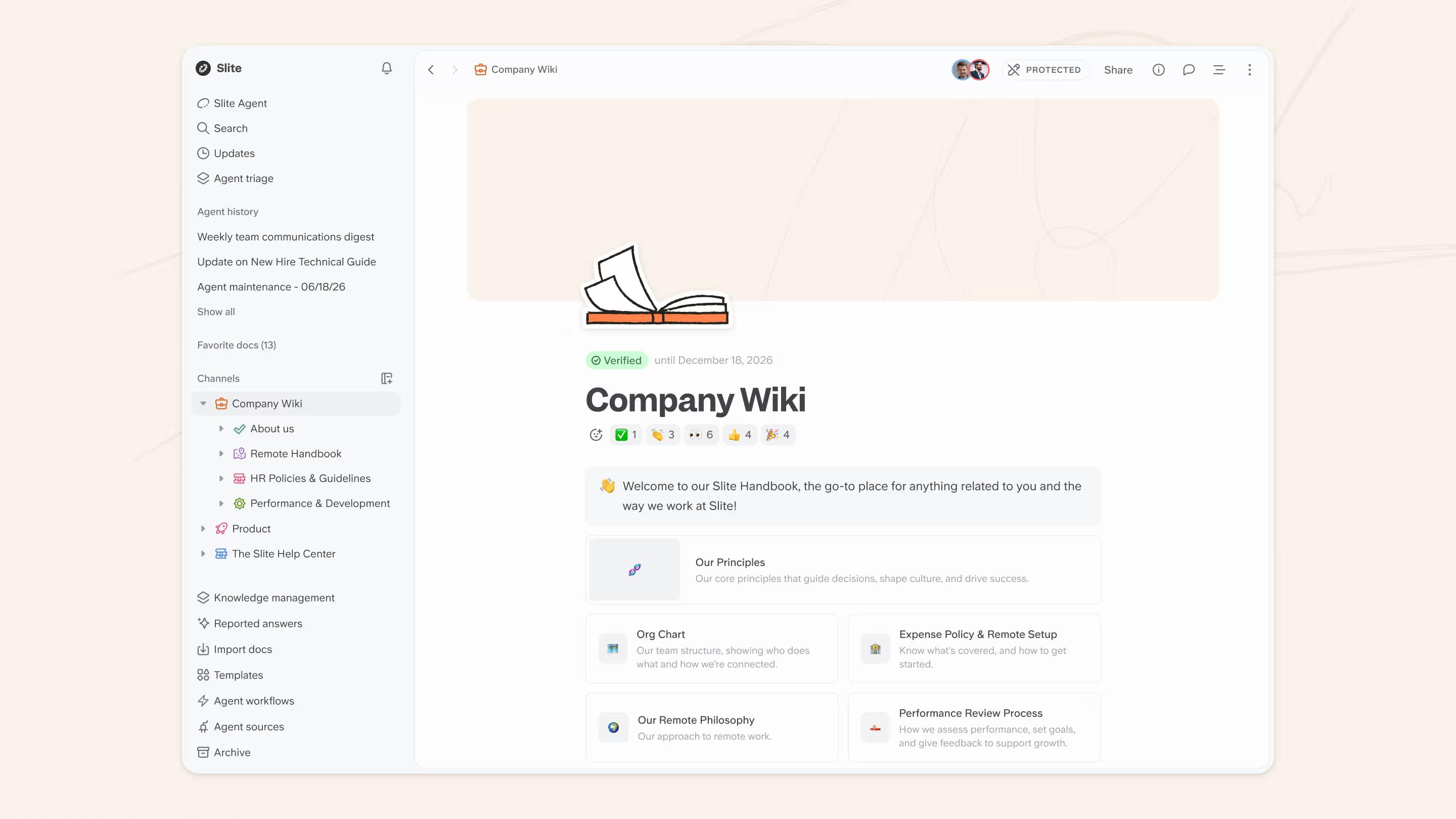
Teams running Jira, Linear, or Monday for delivery use Slite for the decisions, specs, and context those tools were never built to hold.
As of June 2026 it is self-maintaining, with Slite Agent flagging docs that have drifted across your connected tools and proposing fixes for a human to approve.
Reviewing Slite on G2, Kevin Hylant, Founder at Gather, credits it with staying focused on documentation instead of spreading itself across too many jobs.
Where it stands out
- Search across connected tools on Pro, covering Slack, HubSpot, Linear, Jira, Google Drive, GitHub, Asana, SharePoint, Attio, Intercom, BigQuery, and Salesforce. Four of those are tools reviewed on this page, which is what makes the "sits beside your tracker" argument concrete.
- Ask, AI search and answers, on Basic.
- Doc verification state on Basic, plus fact-checking with suggested fixes on Pro.
- MCP and API access on every paid tier.
AI in Slite: Slite Agent, on Pro, checks docs against your connected tools and proposes fixes for a human to approve rather than editing silently.
Collaborative Templates
Slite works across a wide variety of project types and industries, and offers customizable project templates to save you time getting started. Current categories include:
- Project management and documentation
- Marketing
- Product development and management
- Remote work
- Design
- Human resources and management
Integrations
Slack, HubSpot, Linear, Jira, Google Drive, GitHub, Asana, SharePoint, Attio, Intercom, BigQuery, Salesforce, and Airtable, with MCP and API access on paid tiers.
Pricing
As of August 2026:
- 14-day free trial, no credit card, with access to Basic and Pro features
- Basic at $10 per user per month billed yearly: unlimited docs, Ask, doc verification, MCP and API access
- Pro at $20 per user per month billed yearly: adds Slite Agent, search across connected tools, and doc fact-checking with suggested fixes
- Enterprise, custom: reader-only seats, audit logs, SCIM, SLA
Pros / Cons
Pros
- Focused on documentation rather than spread across many jobs, per the public G2 review above
- Search reaches into the tools your work already lives in
- Doc verification and Slite Agent keep pages from quietly going stale
Cons
- No tasks, boards, Gantt charts, sprints, or resourcing, so it does not replace a tracker
- Slite Agent and connected-tool search need the $20 Pro tier, not the $10 Basic one
- No free plan, only a 14-day trial
Bottom Line: Pick Slite as the written layer beside your tracker, not as the tracker itself.
Book a demo today and let us take you for a tour of the app.
2. GoodDay: best for planning, time tracking, and goals in one work platform
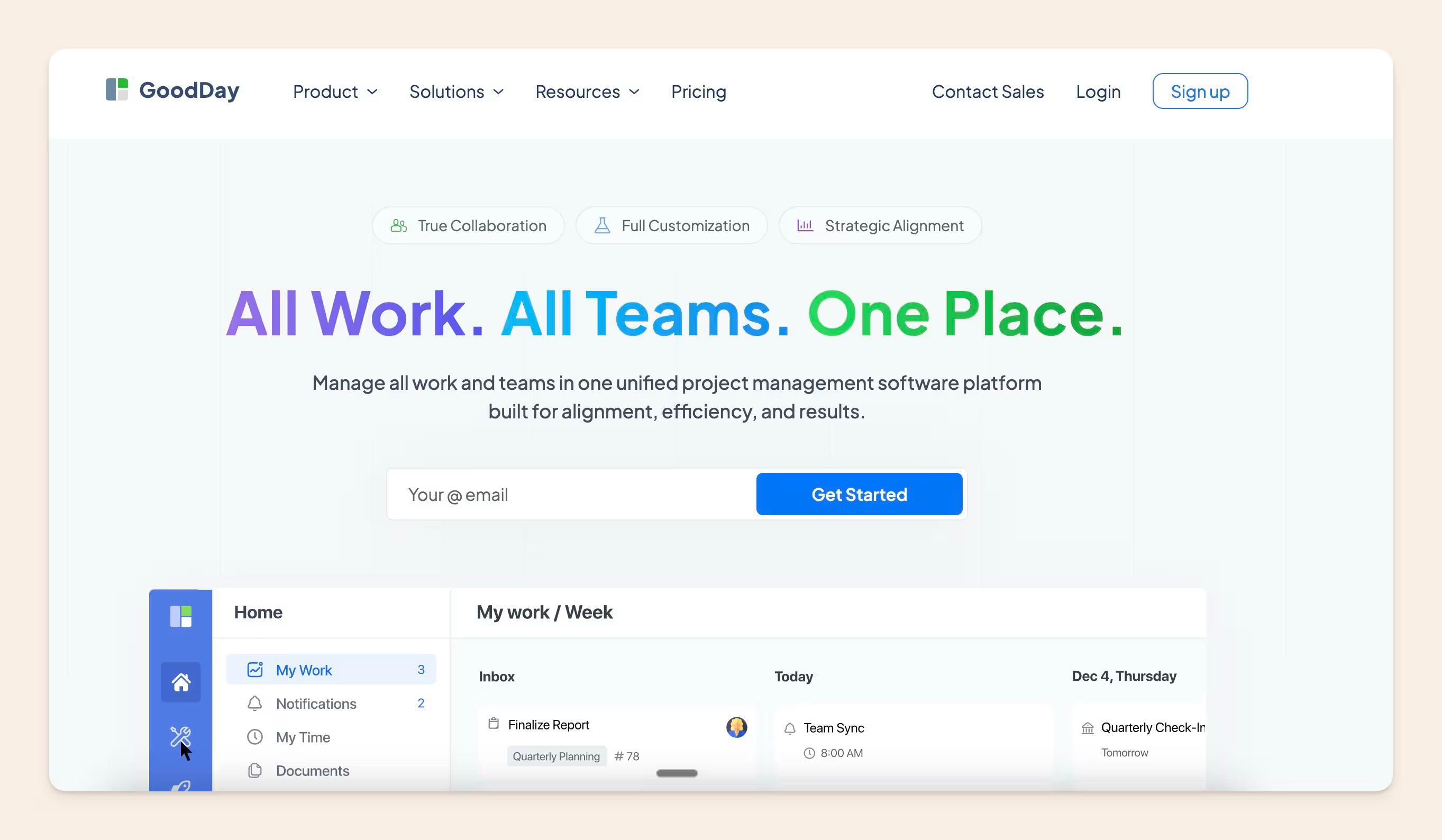
GoodDay is a work management platform that brings projects, tasks, goals, and time tracking into one workspace for marketing, product, agile, HR, and agency teams. It sits in the same general-purpose slot as Monday.com and ClickUp.
Where it stands out
- 20+ views of the same work, including list, board, calendar, Gantt, workload, and portfolio.
- Goals and OKRs and resource planning sit alongside the tasks they relate to.
- Time tracking, reports, and analytics are built in rather than bolted on.
- GoodDay AI covers AI chat, AI-powered replies, and custom agents.
Integrations
Native integrations include Slack, Microsoft Teams, GitHub, Google Workspace, and Dropbox, and Zapier connects 1,300+ more apps.
Pricing
As of October 2026, GoodDay's free plan covers up to 15 members with 1 GB of storage and unlimited projects and tasks. Professional is $4 per user/month billed yearly or $6 billed monthly, and Business is $7 billed yearly or $10 billed monthly. Enterprise is quote only. Check GoodDay's pricing page for current figures.
Pros / Cons
Pros
- Free plan includes unlimited projects and tasks
- Time tracking, workload, and goals live in the same tool as the tasks
- Paid plans start at $4 per user/month billed yearly
Cons
- The free plan is capped at 15 members and 1 GB of storage
- Professional tops out at 250 members and Business at 350, so larger companies move to Enterprise
Bottom Line: GoodDay fits a team that wants planning, time tracking, and goals in one tool and is happy to start on a free plan.
3. Monday.com: best for cross-department work in one configurable workspace
Monday.com is a work operating system that lets teams organize and manage their workflows, tasks, projects, and general collaboration in one configurable workspace. Its main rival in that general-purpose slot is Asana.
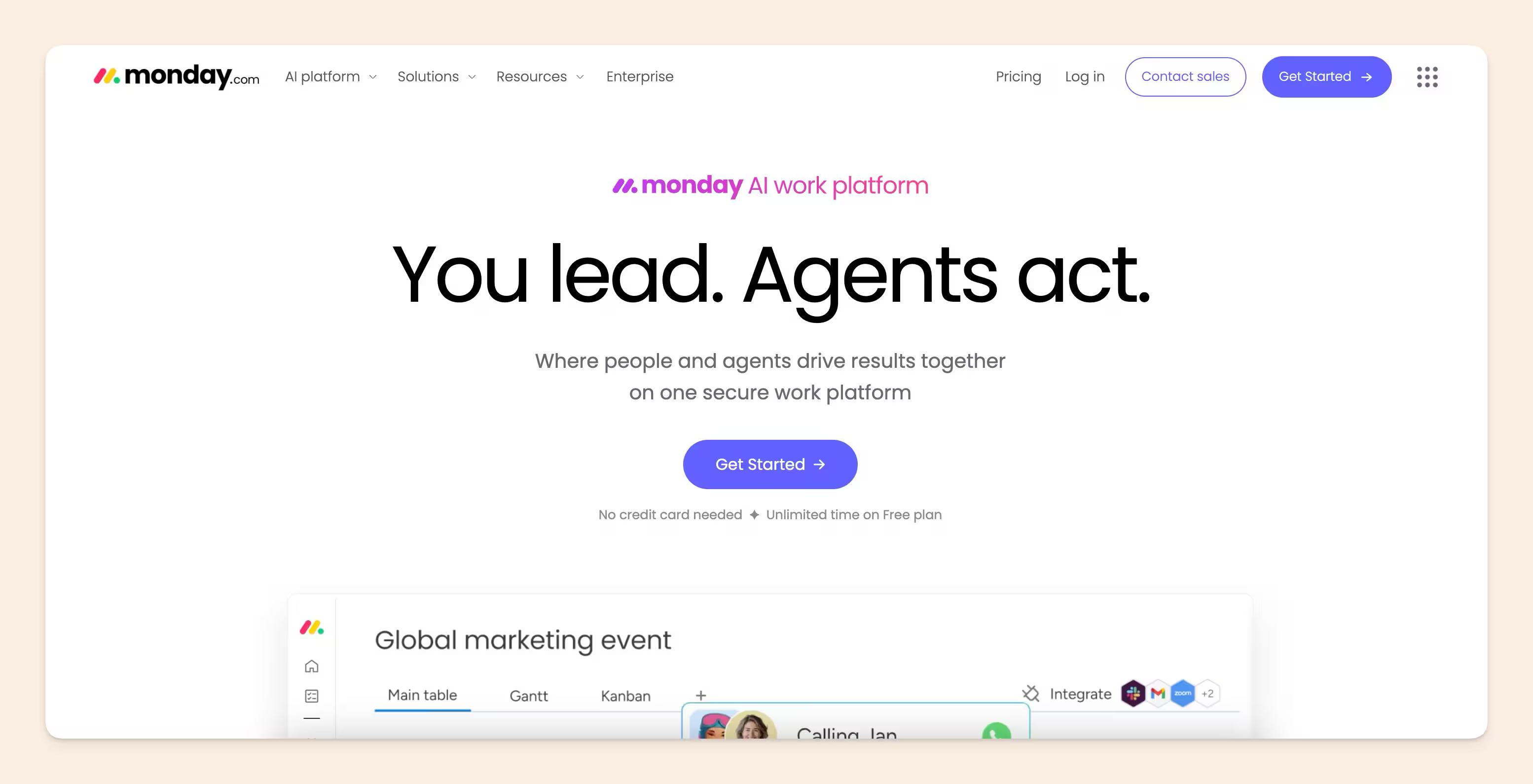
User-friendly
- Everything in your monday.com account is centralized on one main visual board.
- Start from scratch, choose one of their 200+ templates, or select one of their 30+ column types.
- Drag and drop to build your workflow.
- The interface is intuitive enough that most teams need no formal training.
- Works across devices, with iOS and Android apps available.
Integrations
Automations and integrations are straightforward to set up. Popular options include:
- Email marketing: Outlook, Gmail
- Project management: Microsoft Teams
- File management: Dropbox, Google Drive, OneDrive
- Communication and messaging apps: Slack, Zoom
- Social media: LinkedIn
- Other: Google Calendar, Zapier, Excel
monday.com also lets you view the same data as a kanban board, calendar, timeline, Gantt chart, map, form, workload, or main view.
Pricing
As of August 2026, monday.com runs a seat-capped free plan, a paid ladder from a Basic tier up through Pro, and a custom-priced Enterprise tier, with a 14-day trial on the paid plans. The pricing page we captured served euro figures, so we are not publishing USD numbers we could not confirm from a US IP. Check monday.com's pricing page for the figures in your region.
Pros / Cons
Pros
- One board model that non-technical teams pick up quickly
- Views cover almost every way a team wants to look at the same work
- Deep automation and integration catalogue
Cons
- Breadth is also the cost: teams that evaluated a single work OS for both project management and knowledge told us setup complexity and an "everything software" surface meant only their champions used it well
- Per-seat pricing across a whole company adds up fast
- Configurability means someone has to own the configuration
Bottom Line: Monday.com fits a company that wants one configurable system across departments and has someone to maintain it.
4. Basecamp: best for small remote teams that want fewer moving parts
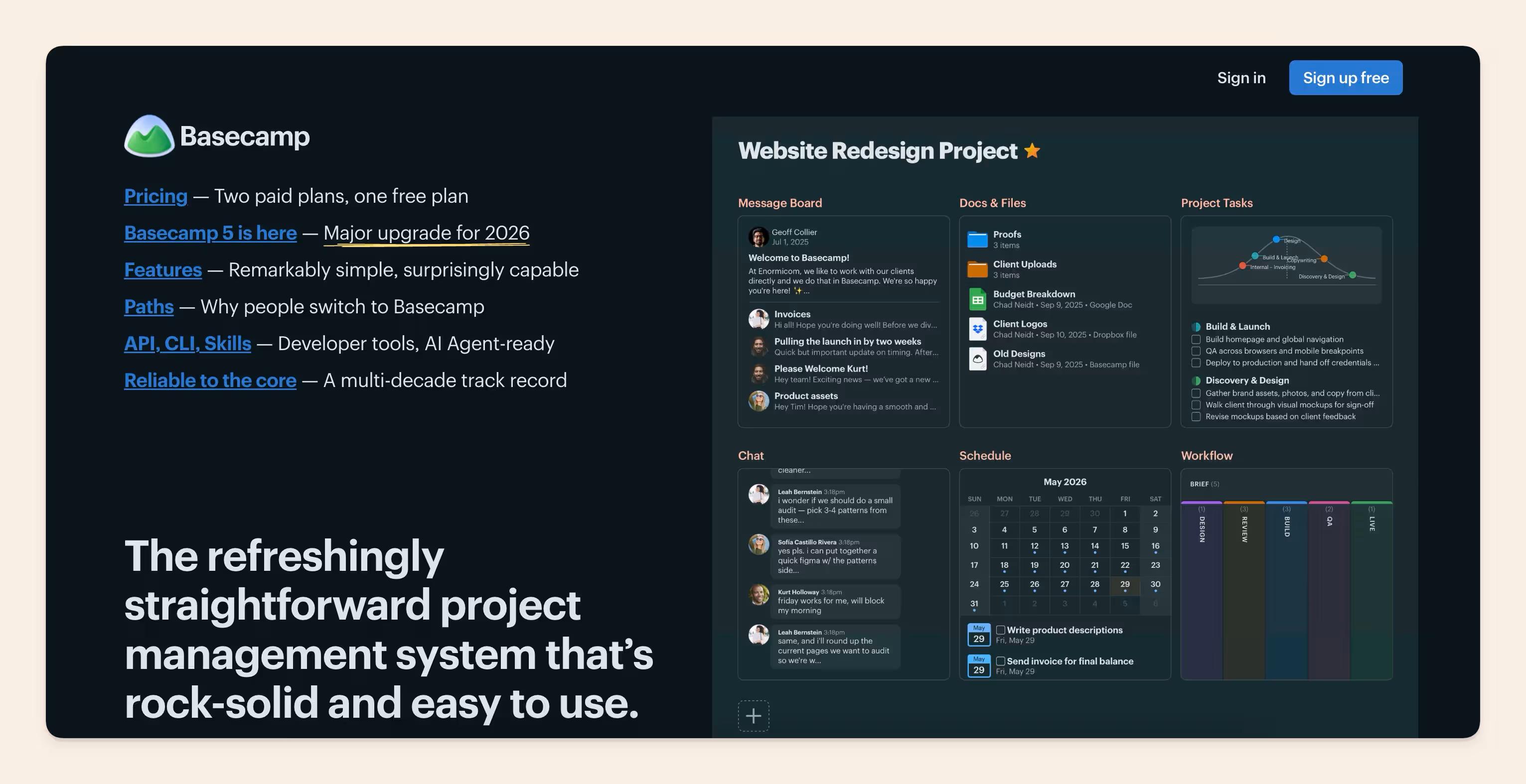
Basecamp is a deliberately opinionated project management tool that combines project tracking with internal communication, which is what makes it work for small and remote teams.
Team accountability
Basecamp acts as a centralized space for your company's projects, teams, and communications, so documents and important information stay in one place. It helps you stay on top of project planning and of keeping in touch. Your homepage carries a message board, to-do lists, schedules, documents and files, group chats, and automatic check-ins. You can extend it with time tracking through Basecamp's integrations directory.
An array of tools
- A message board
- To-do lists
- Schedules
- Documents and files
- Group chats
- Automatic check-ins
Integrations
Basecamp keeps its own directory of third-party integrations covering time tracking, reporting, invoicing, and chat, listed at basecamp.com/integrations.
Pricing
As of August 2026, Basecamp has a free forever tier (1 project, 1 GB of storage, up to 20 users), Pro at $15 per user per month billed monthly, and Pro Unlimited at $299 per month billed annually for unlimited users. The trial runs 30 days on Pro and 60 days on Pro Unlimited. See Basecamp's pricing page.
Pros / Cons
Pros
- Flat $299 tier removes per-seat maths for larger groups
- Communication and project tracking in the same product
- Very little to configure before a team can start
Cons
- Opinionated by design, so it bends less than a work OS
- No Gantt charts or dependency management
- The free tier caps at one project
Bottom Line: Basecamp suits a small remote team that would rather have fewer options than more.
5. Accelo: best for agencies and services firms billing by the hour
Accelo is a professional services automation platform that runs the whole quote-to-invoice cycle in one system: sales, project delivery, tickets, retainers, timesheets, and billing. It is aimed at agencies, consultancies, and services firms whose projects are also revenue.

Accelo acquired Forecast in July 2025, and the two brands merged on 28 May 2026. Forecast's predictive auto-scheduling engine is now the AI core of Accelo.
Where it stands out
Accelo is built so client work, the time spent on it, and the invoice at the end of it are the same record. That removes the copying between a PM tool, a timesheet, and an accounting system that eats a services team's admin hours.
Automation and scheduling
- Automatic scheduling driven by the Forecast engine
- Timesheet suggestions that learn from how people actually log time
- Resource allocation across client work
- Budget estimation on quotes and retainers
AI in Accelo: the Forecast predictive auto-scheduling engine became Accelo's AI core after the May 2026 brand merge.
Profitability tracking
Because Accelo is built around client revenue, it reports on revenue, cost, profit, and profit margin per project and per client, laid out so a project lead without an accounting background can read them.
Real-time updates
Accelo's delivery side tracks milestones, dependencies, deliverables, tasks, and subtasks, and updates them as work is logged, so progress reflects what has actually happened rather than what someone last typed into a status field.
Integrations
Accelo connects to accounting, email, and calendar systems on the finance side, and to the usual chat and storage tools on the delivery side.
Pricing
As of August 2026, Accelo does not publish list pricing; plans are quoted per team size. See Accelo's pricing page to request a quote.
Pros / Cons
Pros
- One system from quote to invoice, so client work and billing never diverge
- Profitability visible while work is in flight
- Scheduling automation inherited from Forecast
Cons
- No published pricing, so you cannot budget without talking to sales
- Takes training and setup time before it pays off
- Overbuilt for teams that do not bill clients
Bottom Line: Accelo is for services firms whose project plan and P&L are the same document.
6. ProofHub: best for freelancers and small teams wanting a flat fee
ProofHub is an all-in-one project planning tool that deliberately keeps its feature set and integration list short so new users face almost no learning curve.
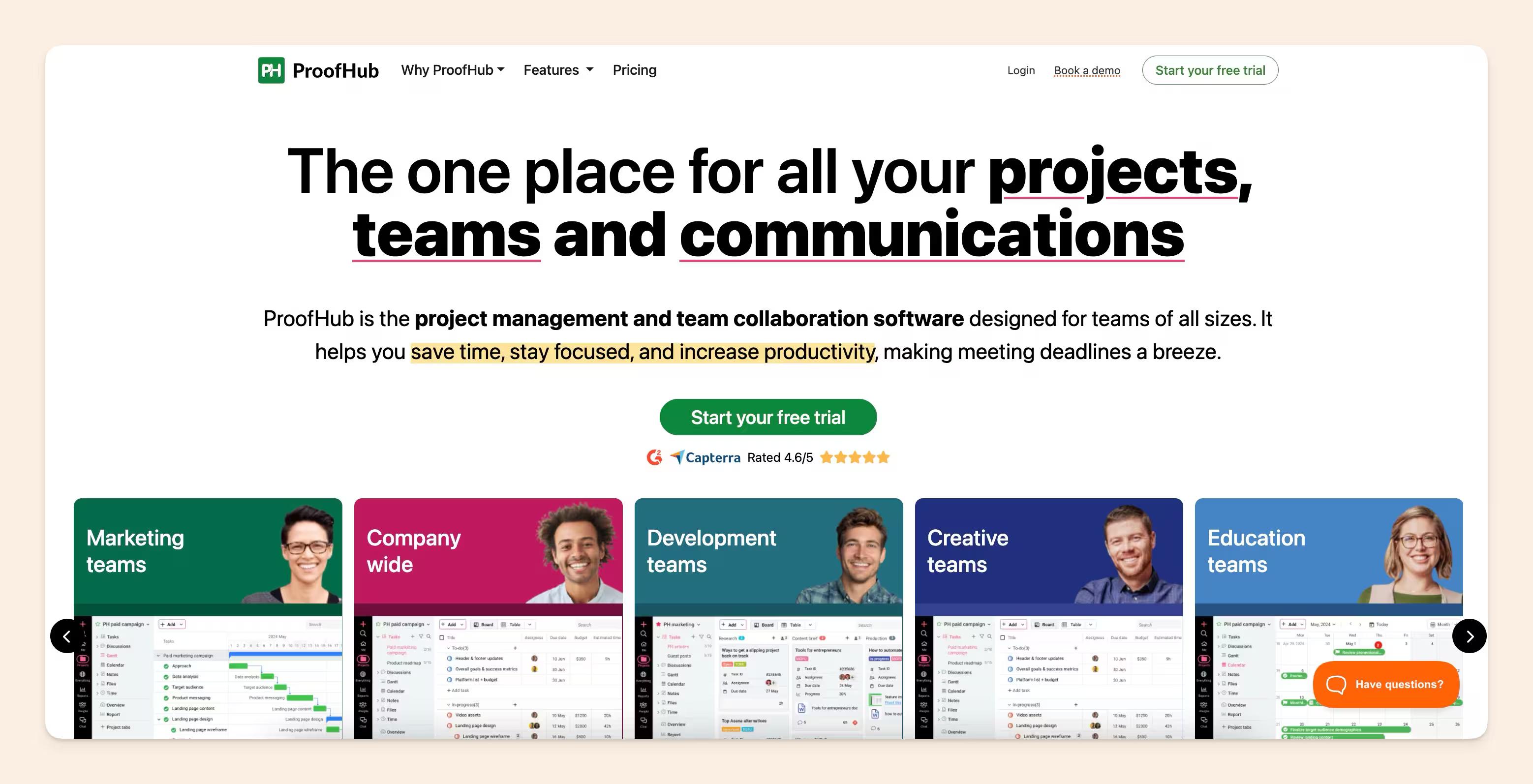
If you want a project management tool that is not complicated and does not need a week of familiarisation, this is a reasonable pick.
Great for freelancers
ProofHub's simplicity makes it work for freelancers and small teams, and the flat price means it keeps working as the team grows. It is a centralized workspace for a project's task lists, workflows, Gantt charts, documents, files, schedules, and chats.
The essential functionalities you really need
ProofHub covers the project management basics. It acts as a centralized workspace where you can place your project's:
- Task lists
- Workflows
- Gantt charts
- Documents
- Files
- Schedules
- Chats
Integrations
ProofHub keeps a short integration list by design, covering file storage, calendar, and a handful of communication tools rather than a large marketplace.
Pricing
As of August 2026, ProofHub is $45 per month for unlimited users, with a free trial and no per-seat charge. See ProofHub's pricing page.
Pros / Cons
Pros
- Flat monthly price with unlimited users
- Almost no learning curve
- Gantt charts included at the entry price
Cons
- Short integration list, on purpose
- Limited customisation compared with a work OS
- No free plan, only a trial
Bottom Line: ProofHub is the flat-fee option for a small team that does not want to think about seats.
7. Airtable: best for structured data and custom internal apps
Airtable is a spreadsheet crossed with a database. It organizes almost any kind of information behind the familiar surface of a spreadsheet, while behaving like an interactive database underneath.
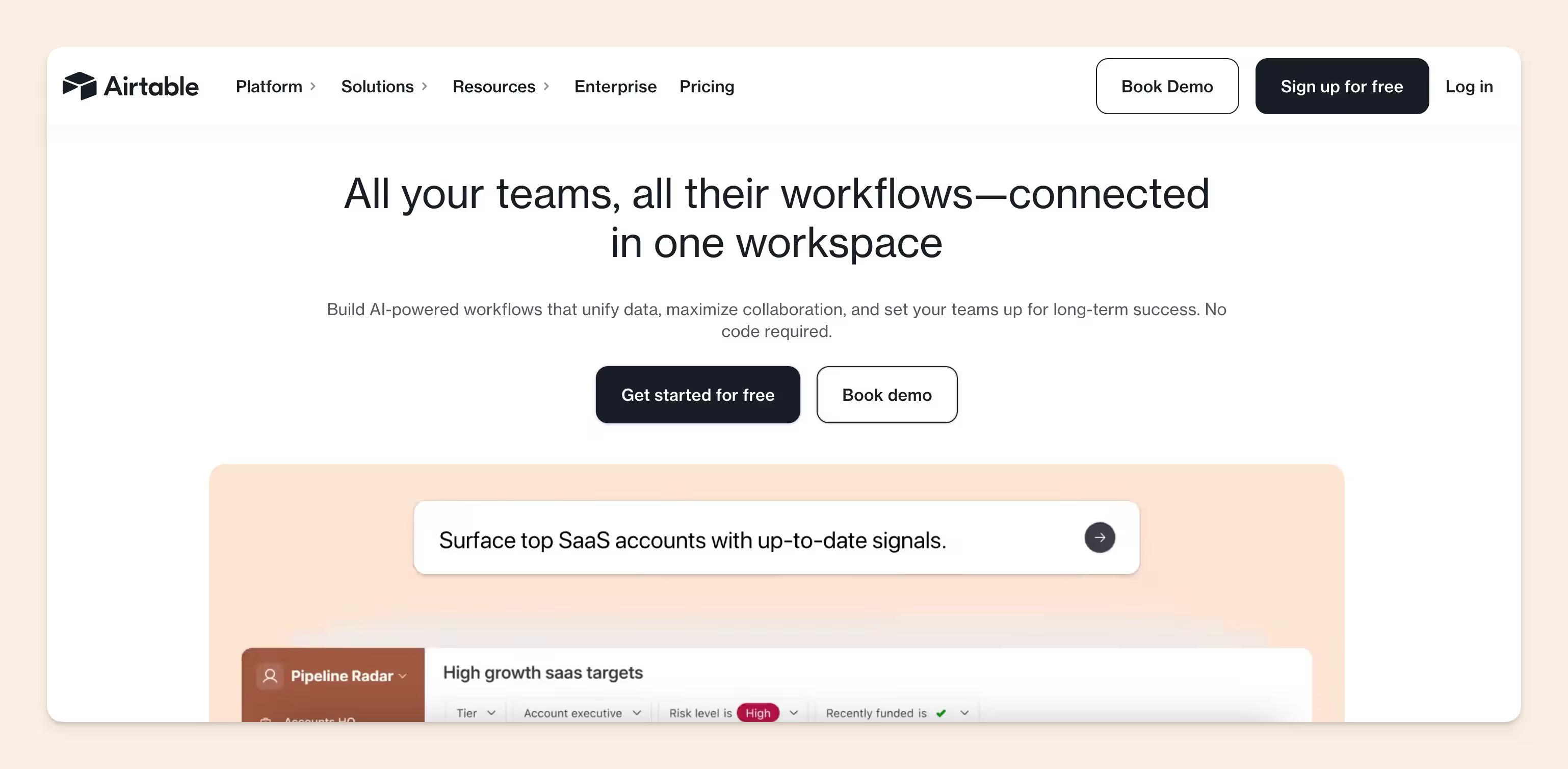
Use Airtable for everything from project information to internal company data to customer and CRM records. It has an easy-to-use interface and is an effective way to organize information, and Airtable bases embed live in Slite docs through the Airtable integration, so the base and the write-up around it stay in one place.
Keeps your data sorted and organized
- On Airtable, a single database is called a base.
- Bases can be customized with field types including checklists, drop-downs, priority levels, due dates, notes, links to associated records, and drag-and-drop attachments.
- Bases can be viewed in a traditional grid format, and in calendar and gallery views.
- You can group and organize records within a view.
Integrations
Airtable connects to most web apps and has a documented API, so teams can share information between bases and external applications. Some apps have built-in integrations; for everything else you can use Zapier, Make (formerly Integromat), Workato, or n8n to automate across a thousand-plus other web apps.
Popular integrations include:
- Project management: Asana, Basecamp, Trello
- File storage: Dropbox, Google Drive, Box
- Communication and messaging apps: Slack
- Email marketing: Mailchimp, Gmail
- Social networks: Facebook, LinkedIn, YouTube, X, Instagram
- Payment processing: Stripe
Airtable works across browsers and operating systems, with mobile apps for iOS and Android.
Pricing
As of August 2026, Airtable has a free plan for individuals and small teams, Team at $20 per user per month and Business at $45 per user per month, both billed annually, and a custom-priced Enterprise Scale tier.
Pros / Cons
Pros
- Spreadsheet familiarity with database behaviour underneath
- Strong API and automation options
- Free plan is genuinely usable for a small team
Cons
- Not a project management tool out of the box; you build the workflow yourself
- Business tier at $45 per user is expensive for wide rollouts
- Record limits bite on large datasets
Bottom Line: Airtable is for teams whose project problem is really a structured-data problem.
8. GitHub: best for engineering teams working in the code
GitHub is a code-hosting and developer-workflow platform used by engineering teams and open-source projects worldwide. Its project management lives next to the code rather than in a separate system: issues, pull requests, and Projects boards all reference the same commits.
Where it stands out
GitHub's advantage is proximity. An issue links to the branch that fixes it, the pull request that reviews it, and the deploy that ships it, so status is derived from the work instead of reported separately. For teams whose projects are software, that removes an entire class of stale status updates.
Developer workflow and Actions
- Issues and Projects boards with custom fields, views, and roadmaps
- Pull requests with required reviews and status checks
- GitHub Actions for CI/CD and workflow automation
- Codespaces for cloud development environments
- Open-source collaboration: forks, discussions, and public project boards
- Security features including dependency scanning and secret scanning
Integrations
GitHub has a large marketplace of apps and actions, plus a well-documented REST and GraphQL API, and it connects to most chat, incident, and issue tools.
Pricing
GitHub publishes free, team, and enterprise tiers. We could not re-verify GitHub's per-seat figures at the time of writing in August 2026, so check GitHub's pricing page rather than relying on a number quoted elsewhere.
Pros / Cons
Pros
- Project status derived from real engineering activity
- Automation through Actions with no extra tool
- Free tier covers a lot for small and open-source teams
Cons
- Only useful for work that lives in a repository
- Non-engineers rarely adopt Projects boards
- Portfolio and resource management are not really there
Bottom Line: GitHub is the right project tool when the project is code and the team is engineers.
9. Zoho Projects: best for teams already inside the Zoho suite
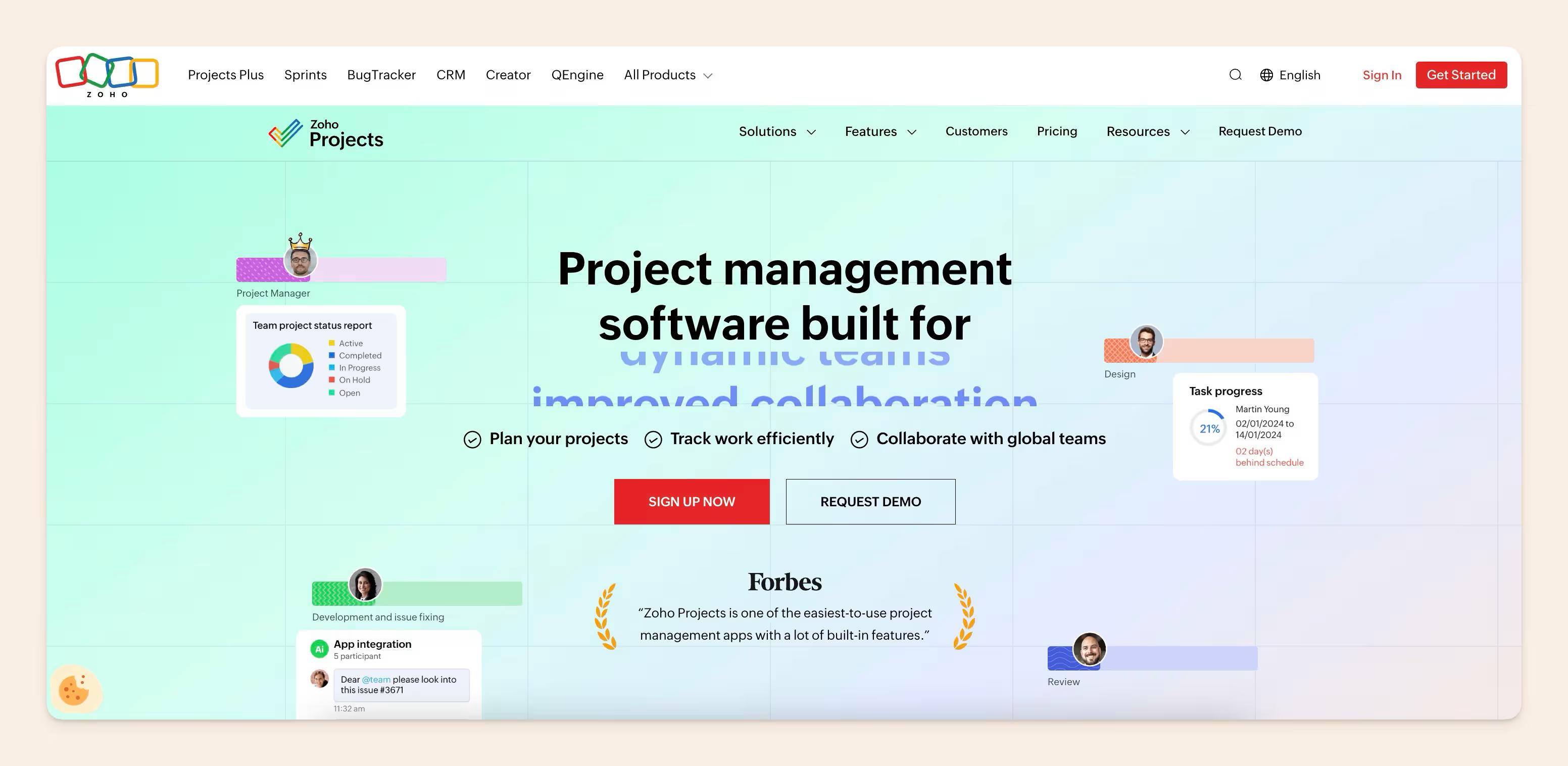
Zoho Projects is a general-purpose project management tool covering planning, time tracking, reporting, and team collaboration. Its strongest argument is the rest of Zoho: if your CRM, help desk, and books already run there, the project side inherits the same records and the same logins.
Where it stands out
Zoho Projects is priced and built for teams that want a full project tool without a per-seat bill that scales like a work OS. Because it shares a data layer with the other Zoho apps, a project can be tied to a CRM deal or a support ticket without an integration in between.
The Zoho suite advantage
- Task lists, milestones, and Gantt charts with dependencies
- Built-in timesheets and billing hours
- Issue tracking for software teams
- Blueprints for repeatable, rule-driven workflows
- Native links to Zoho CRM, Desk, Books, and Analytics
- Reporting across projects and portfolios
Integrations
Zoho Projects connects natively across the Zoho suite and integrates with Google Workspace, Microsoft 365, Slack, GitHub, and Zapier.
Pricing
As of August 2026, Zoho Projects has a free tier for up to 5 users, 3 projects, and 5 GB of storage.
Pros / Cons
Pros
- Cheapest credible full-feature option for suite users
- Shares data with Zoho CRM, Desk, and Books without glue
- Usable free tier for very small teams
Cons
- Interface feels dated next to Linear or Monday.com
- The value case weakens sharply if you do not use other Zoho products
- Reporting takes configuration to get useful
Bottom Line: Zoho Projects makes sense if you are already a Zoho company, and much less sense if you are not.
10. Linear: best for product teams that live on keyboard shortcuts
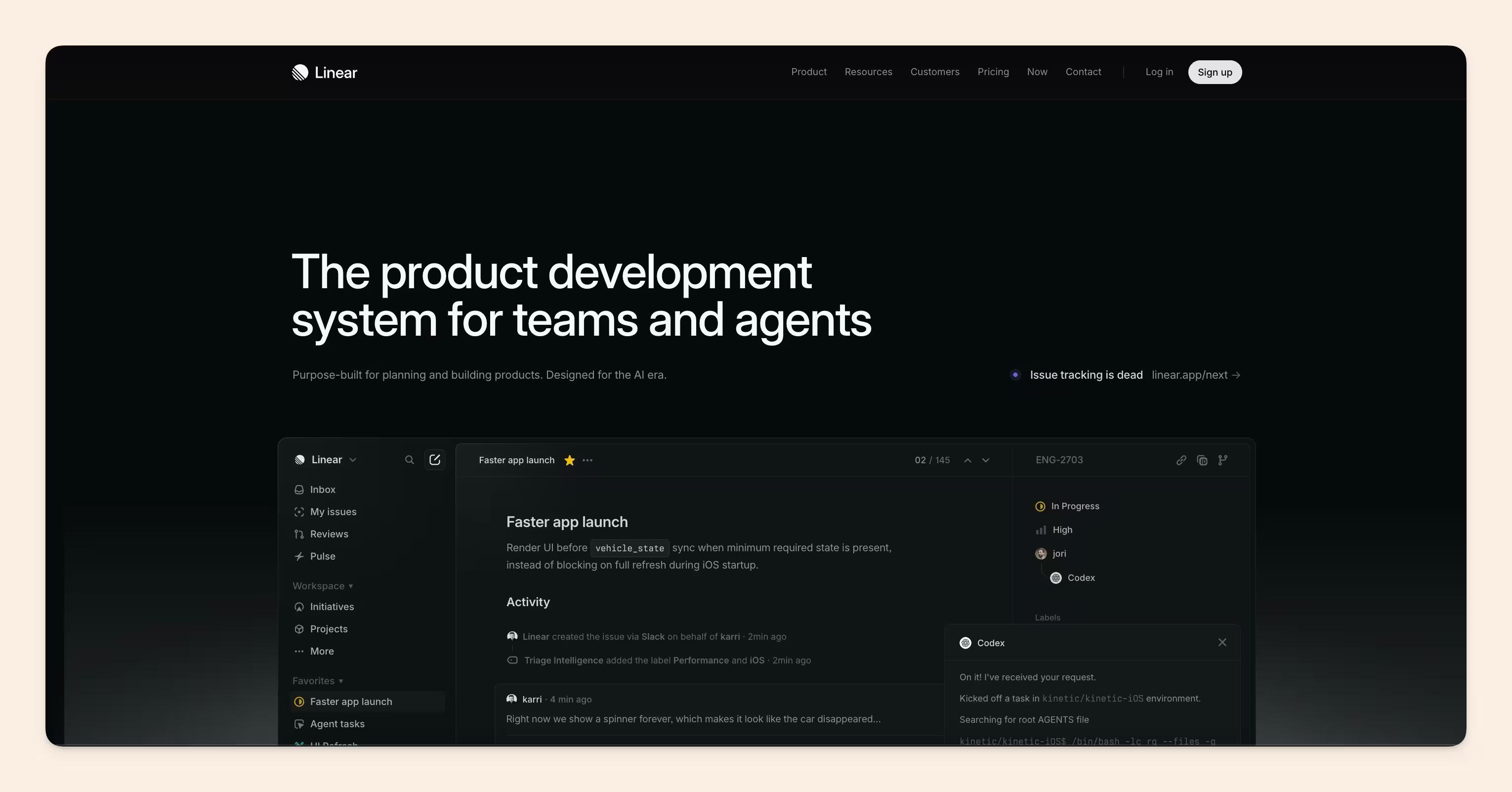
Linear runs work in Cycles and is built for people who would rather hit a keyboard shortcut than click through a menu. It started as a bug and issue tracker and now covers planning and building products end to end, including an agent platform.
Where it stands out
Linear is opinionated about speed. Cycles give a team a fixed cadence instead of an open backlog, triage keeps incoming work from silting up the board, and almost every action has a shortcut. You break a complex project into a series of issues and get one view of how the whole thing is moving.
Keyboard-driven cycles and triage
- Cycles for fixed-cadence planning
- Triage queues for incoming bugs and requests
- Projects and roadmaps above the issue level
- Command menu and shortcuts for nearly every action
- Git integration that moves issues as branches and pull requests move
- Linear Agent, available on the free tier
AI in Linear: Linear Agent ships on the free tier rather than as a paid add-on.
Integrations
Linear connects to GitHub, GitLab, Slack, Figma, Sentry, and Zapier, and exposes a GraphQL API.
Pricing
As of August 2026: a free plan (unlimited members, 2 teams, 250 issues), Basic at $10 per user per month, Business at $16 per user per month, and a custom-priced Enterprise tier.
Pros / Cons
Pros
- Fast enough that people actually keep it up to date
- Cycles impose a cadence without heavyweight process
- Agent included on the free tier
Cons
- Built around software delivery, so non-engineering teams fit awkwardly
- The free plan's 250-issue ceiling arrives quickly
- Opinionated: there is one right way to use it
Bottom Line: Linear is the pick for a product team that wants speed and cadence over configurability.
11. Smartsheet: best for spreadsheet-native rollouts at enterprise scale
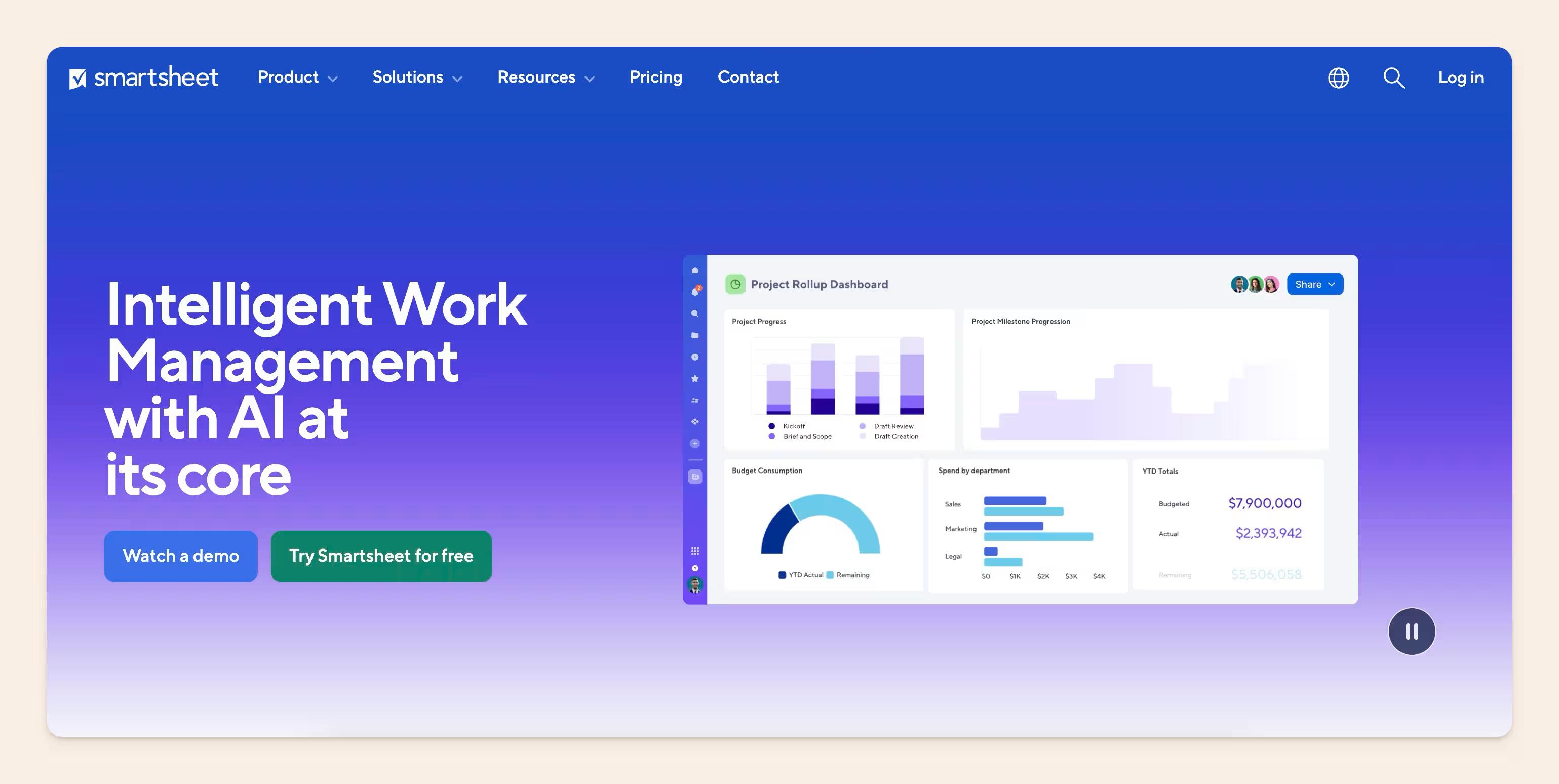
Smartsheet is an end-to-end work execution platform aimed at large organisations running portfolios of work at scale, with a grid that looks and behaves like a spreadsheet.
Where it stands out
Smartsheet's advantage is the on-ramp. Teams that already run their programme in Excel can move it into Smartsheet without retraining anyone on a new metaphor, and then layer automation, approvals, and portfolio reporting on top of the same grid.
Spreadsheet-native enterprise rollouts
- Grid, Gantt, card, and calendar views over the same sheet
- Automated workflows for approvals, alerts, and update requests
- Forms for structured intake from outside the team
- Portfolio and resource management across programmes
- Governance controls, audit trails, and admin tooling
- Dashboards for executive reporting
Integrations
Smartsheet connects to Microsoft 365, Google Workspace, Salesforce, Jira, Slack, and Teams, and offers an API for custom connections.
Pricing
Smartsheet publishes tiered per-user plans plus custom enterprise pricing.
Pros / Cons
Pros
- Almost no learning curve for spreadsheet users
- Genuine portfolio and governance features for large rollouts
- Strong automation on top of a familiar grid
Cons
- The spreadsheet metaphor gets unwieldy on very large programmes
- Enterprise-oriented pricing and procurement
- Less pleasant for small teams than lighter tools
Bottom Line: Smartsheet is for a big organisation whose plans already live in spreadsheets and need governance around them.
12. Jira: best for agile software delivery in the Atlassian stack
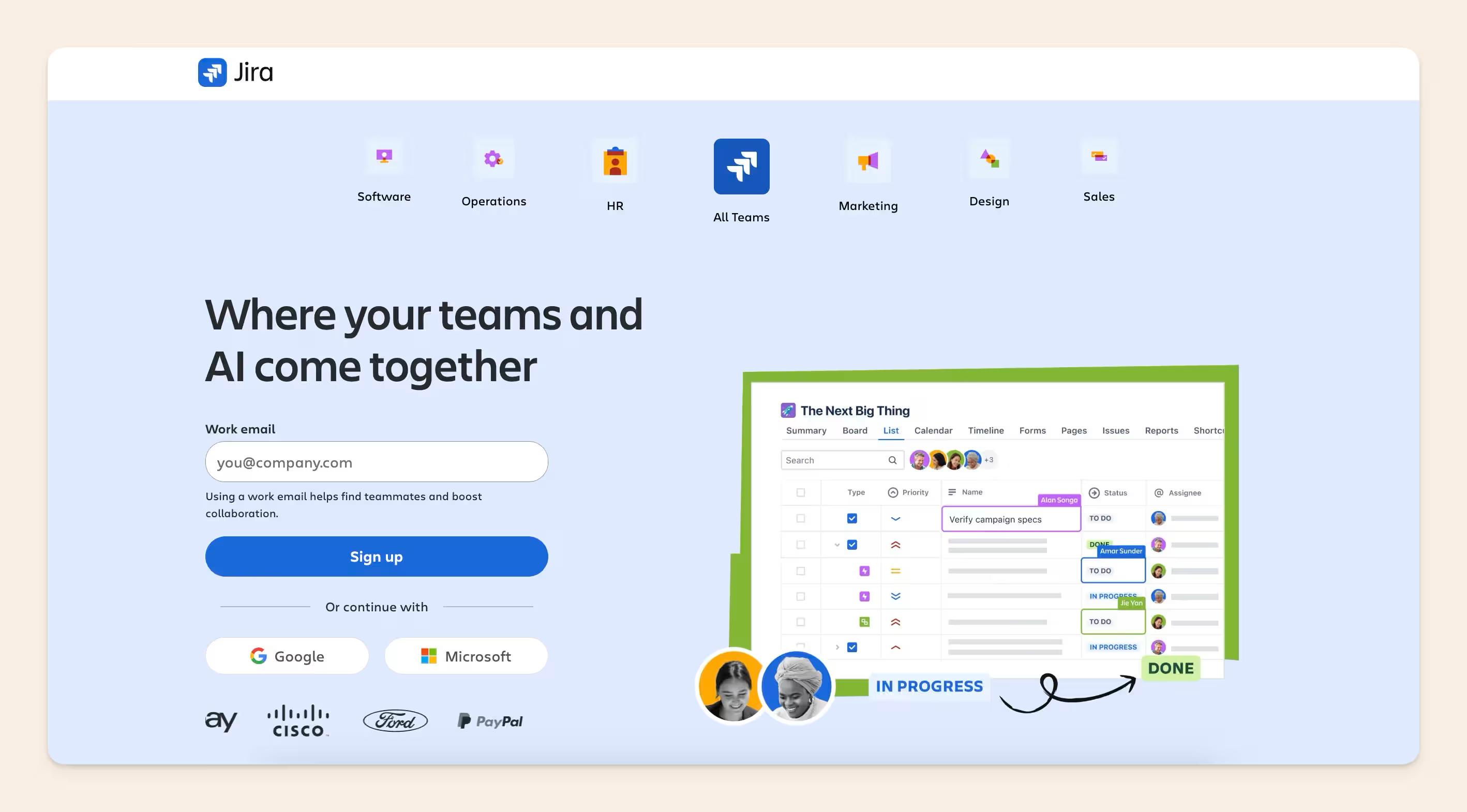
Jira was initially designed as a bug and issue tracker and has since become a general work management tool. It is now used well beyond engineering, from project management to product management to plain task tracking, though its centre of gravity is still agile software delivery.
Where it stands out
Jira's strength is that it will model whatever process you actually have. Custom issue types, fields, workflows, and permission schemes mean a regulated enterprise and a two-person startup can both run on it, and JQL gives reporting a real query language rather than a filter dropdown.
Agile boards and the Atlassian ecosystem
- Scrum and kanban boards with sprints, backlogs, and burndown
- Custom workflows, issue types, and field schemes
- JQL for querying and building reports
- Advanced Roadmaps for cross-team planning
- Native links to Confluence, Bitbucket, and Atlassian's wider stack
- A large marketplace of third-party apps
That marketplace is also where teams patch the gaps in raw Jira: a Jira checklist app, for one, adds the in-issue to-do lists the platform never shipped natively.
Integrations
Jira integrates natively across Atlassian's products and connects to GitHub, GitLab, Slack, Microsoft Teams, and Figma, with a REST API and a large app marketplace.
Pricing
Jira publishes a free tier and paid per-user tiers up to enterprise.
Pros / Cons
Pros
- Models almost any process you already run
- Reporting is genuinely queryable
- Deep ecosystem, especially alongside Confluence and Bitbucket
Cons
- Configuration debt accumulates and someone has to own it
- Overkill for teams that just need a task list
- Non-engineers often find it heavy
Bottom Line: Jira is the default when software delivery is complicated enough to need a process modelled properly.
13. ClickUp: best for teams that want maximum configurability
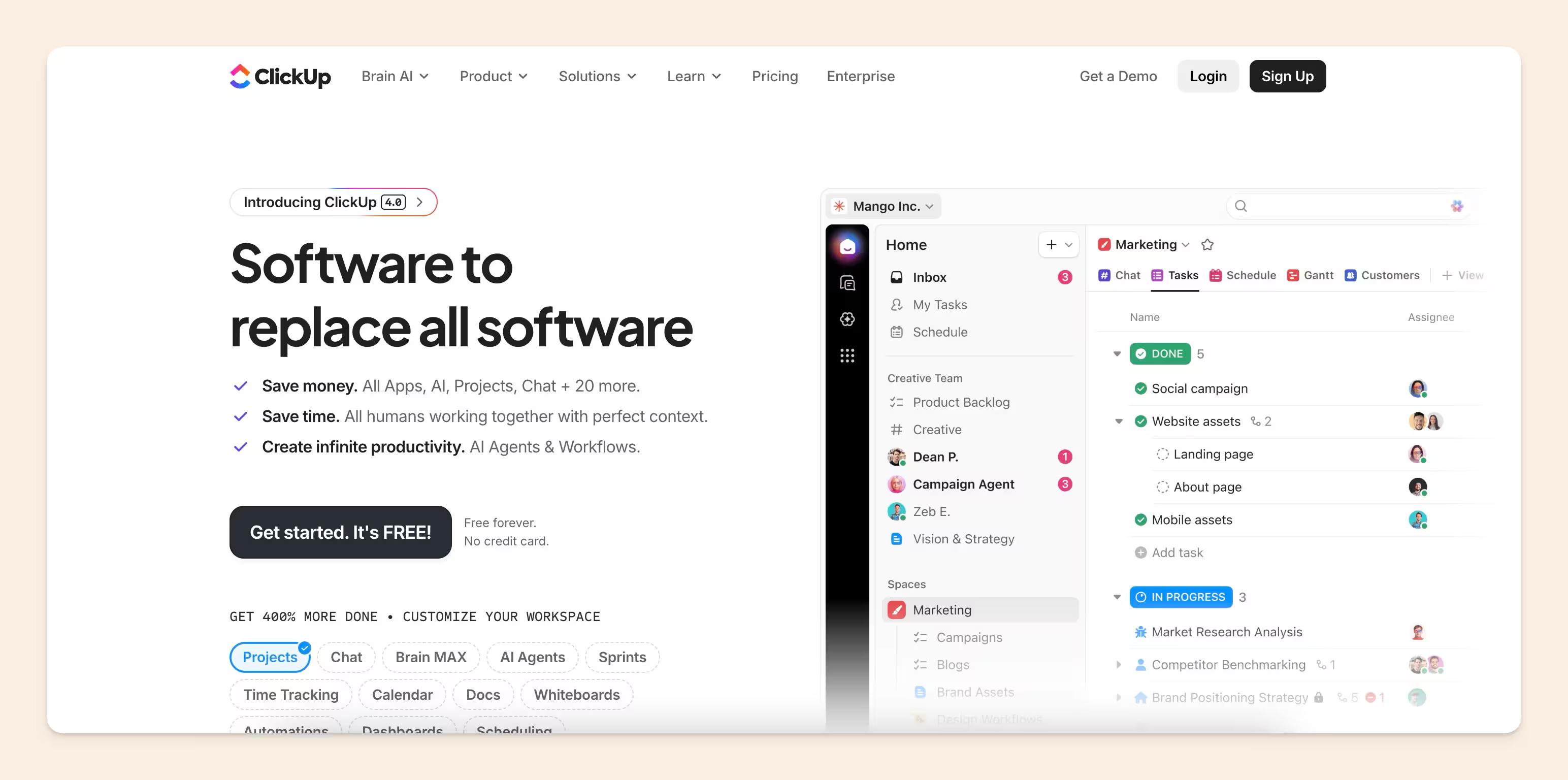
ClickUp is a project management platform built around task management for teams of any size, with an interface that is unusually pleasant given how much it does. Its pitch is breadth: docs, goals, whiteboards, time tracking, and dashboards alongside the task views.
Where it stands out
ClickUp gives you more views and more configuration per dollar than almost anything else on this list. Lists, boards, Gantt, calendar, timeline, workload, and mind maps all run over the same tasks, and custom fields and statuses can be shaped per space.
Breadth and configurability
- Multiple views over the same tasks, from list to Gantt to workload
- Custom fields, statuses, and automation rules per space
- Docs, whiteboards, and goals built in
- Native time tracking and time estimates
- Dashboards with custom widgets
- Templates for common project shapes
AI in ClickUp: AI is priced separately, with Brain at $9 per user per month and Everything AI at $28 per user per month on top of the plan.
Integrations
ClickUp connects to Slack, Google Workspace, Microsoft 365, GitHub, GitLab, Zoom, and Zapier, with a public API.
Pricing
As of August 2026: Free Forever; Unlimited at $7 per user per month billed yearly or $10 billed monthly; Business at $12 billed yearly or $19 billed monthly; and a custom-priced Enterprise tier. AI is separate, at $9 per user per month for Brain and $28 for Everything AI.
Pros / Cons
Pros
- Most views and features per dollar on this list
- Generous Free Forever tier
- Docs and whiteboards included rather than sold separately
Cons
- Teams that evaluated a single all-in-one tool for both project management and knowledge told us the setup complexity and the sheer feature surface meant only their champions used it well
- AI costs extra on top of an already broad plan
- Configuration decisions pile up quickly
Bottom Line: ClickUp rewards a team willing to configure it, and punishes one that will not.
14. Productive.io: best for agencies running projects against a budget
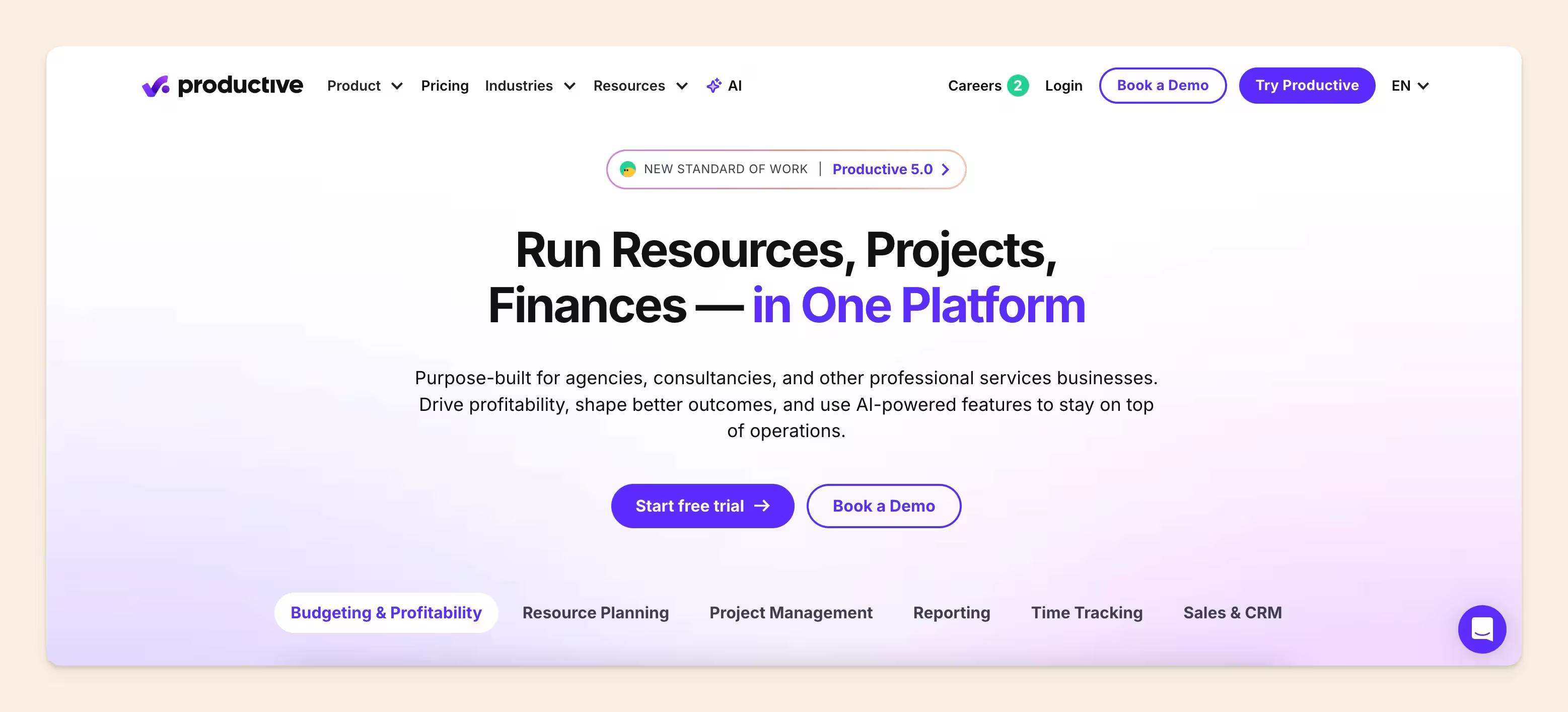
Productive.io is a project management and agency operations platform built for teams that live and die by project profitability: agencies, consultancies, and professional services firms. It runs resource planning, budgeting, time tracking, and project delivery in a single system instead of a PM tool stitched to separate finance software, and it is SOC 2 Type II compliant with a strong track record of uptime.
Where it stands out
Productive treats every project as a budget as much as a task list. Time entries, resourcing, and invoicing tie back to the same project in real time, so profitability stays visible while the work is happening rather than surfacing in a report at the end of the month. Customers like Saffron and MakerStreet use it to get a single, real-time view of project health instead of piecing it together across tools.
AI built into the workflow
- AI Assistant: draft, summarize, and manage work using plain-language requests inside the platform
- AI-generated timesheets: auto-fills based on calendar events and past time entries
- AI report generation and report intelligence: ask for a budget, resourcing, or profitability report and get a plain-language summary back
- AI project summaries: flags budget blockers and project health automatically
- AI Notetaker: joins calls, transcribes them, and turns action items into tasks
- Agents and Skills: build custom, reusable automations for repetitive work without code
AI in Productive.io: AI runs through the whole workflow, from timesheets and reports to a notetaker that turns call actions into tasks.
Integrations
Connects with Xero, QuickBooks, Slack, HubSpot, Google Calendar, Office 365, and 1,000+ apps via open API.
Pricing
As of August 2026, Productive has a 14-day free trial with no credit card required. Both paid tiers carry a 10-user minimum: Essential at $10 per user per month, so $90 per month at the floor, and Professional at $25 per user per month, which adds advanced reporting, approvals, and integrations. An Ultimate tier with custom pricing is available for larger organisations needing multi-subsidiary support, advanced security, and AI agents or connectors.
Pros / Cons
Pros
- Budget, resourcing, and delivery in one record
- Profitability visible during the project, not after it
- AI covers the admin work agencies actually hate
Cons
- 10-user minimum prices out very small teams
- Built for billable services work, so product teams get little from it
- No free plan, only a 14-day trial
Bottom Line: Productive.io is for an agency that wants its project plan and its margin in the same view.
15. ONES.com: best for enterprise software delivery in one workspace
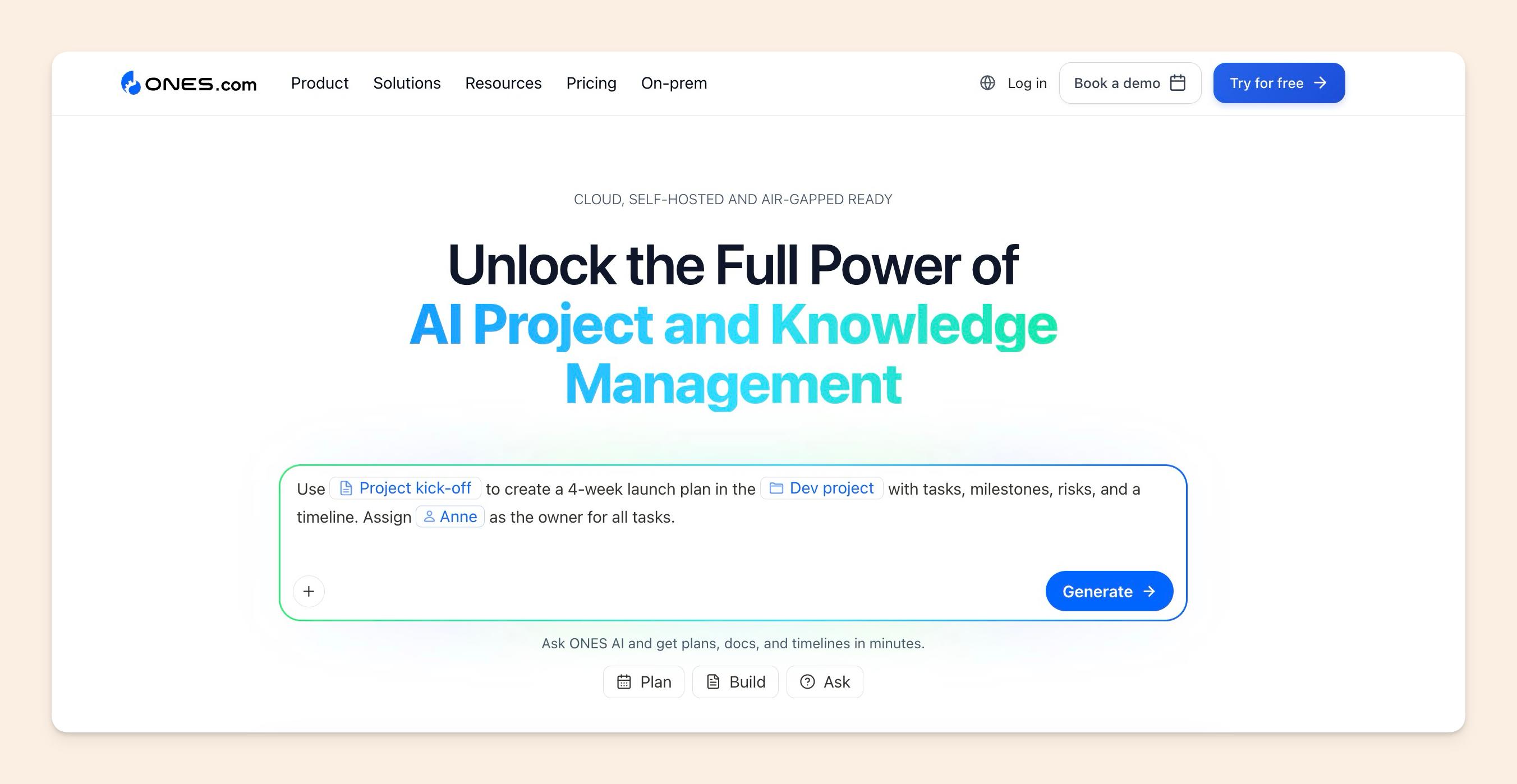
ONES.com is a project management platform built for teams that need to connect planning and task execution with requirements, documentation, testing, and software delivery. Instead of managing these workflows across separate tools, teams can keep them linked in one workspace.
Where it stands out
ONES.com is designed for structured, cross-functional projects where work must remain traceable from the original requirement through implementation, testing, approval, and delivery. It supports both agile software teams and enterprise PMOs that need stronger governance across multiple projects.
Software delivery and governance
- Custom workflows, issue types, fields, and approval rules
- Scrum and Kanban boards, backlogs, sprints, releases, and Gantt charts
- Requirements management and traceability
- Integrated wiki and project documentation
- Test case management, test execution, and reporting
- Cross-project planning, resource scheduling, and portfolio reporting
- Cloud, private-cloud, on-premises, and air-gapped deployment options
AI in ONES.com: ONES Assistant works with project and knowledge data, while ONES MCP connects AI agents with projects, wikis, and worklogs so generated output can remain grounded in current team context.
Integrations
Connects with GitHub, GitLab, Bitbucket, SVN, Jenkins, Slack, and Microsoft Teams. Teams can also extend workflows through APIs, automation rules, and ONEScript.
Pricing
As of October 2026, ONES.com has a free plan for up to 30 users. Standard is $98.50 per user per year billed annually, Business is $172 per user per year billed annually, and Enterprise is $258 per user per year billed annually.
Pros / Cons
Pros
- Connects project work, requirements, documentation, testing, and delivery
- Strong governance and traceability for complex or regulated projects
- Supports both agile execution and enterprise portfolio planning
- Flexible deployment and data-control options
- Free plan supports teams of up to 30 users
Cons
- Broader than a lightweight task tracker, so smaller teams may not need every module
- Advanced portfolio, resource, and governance capabilities require higher-tier plans
- Initial configuration can take more planning than simpler board-based tools
Bottom Line: ONES.com is a strong fit for software organizations and enterprise PMOs that want project execution, knowledge, requirements, testing, and delivery governance connected in one platform.
Other tools worth a look
Two well-known tools did not get a full listing here, but belong on your shortlist.
- Asana: a general-purpose work management tool in the same slot as Monday.com, strong on cross-team projects, portfolios, and goal tracking.
- Trello: the simplest kanban board most teams ever need, and a common first project tool before a team outgrows it. If you are already there, our Trello alternatives for project management guide covers where teams tend to go next.
Where AI actually helps in project management, and where it does not
AI has arrived in almost every tool on this list, but it is doing narrower work than the marketing suggests.
What is reliable today is admin removal:
- filling timesheets from calendar events,
- summarizing a project's status,
- drafting a report from data the tool already holds, a
- nd turning meeting actions into tasks.
Those are bounded tasks with a verifiable answer.
What is not reliable is judgement.
No tool on this list can decide scope, resolve a trade-off between two teams, or tell you why a decision was made six months ago if nobody wrote it down.
AI can only summarise what exists, so a tool with an empty documentation layer produces confident summaries of nothing.
Some vendors bundle AI into the plan, and some price it separately: ClickUp charges $9 per user per month for Brain and $28 for Everything AI on top of the plan, while Linear ships Linear Agent on its free tier. Before you compare list prices, check which side of that line each vendor sits on.
How to choose a project management tool
The right project management tool depends on your team's size, the kind of work you run, and what you already have in place. Weigh adoption first, then the process fit, then the feature list.
The criteria below are the ones that actually decide it, ordered by how much they matter in 2026.
- Will people actually use it: a tool nobody opens is worse than a spreadsheet everyone does. On our own knowledge management frameworks page we cite a 94% adoption figure for teams that run a structured framework. Treat it as directional rather than as a benchmark you can hold a vendor to, and test adoption with a real team before you roll anything out.
- You probably already have one of these, so where will the decisions live: an operations lead at a mid-size retailer came to us with Asana already in place. Her question was never which tool to buy; it was where project governance, requirements, and solution design would live. Decide that before you compare boards.
- AI governance and data residency: ask where prompts and documents are processed, whether your content trains a model, which region the data sits in, and who on your team can turn AI features on. This is the criterion that did not exist two years ago and now blocks procurement.
- Cloud-based delivery: SaaS tools give you security patching and access from anywhere without installation and upgrade cycles.
- Version control: several people should be able to work on the same document, with past versions and edits still recoverable.
- Access control: on a large team with mixed seniority, controlling permissions and levels of access matters more than any feature.
- User-friendly interface: the tool should be easy to navigate and should not require special skills to use.
- Cross-device and cross-browser compatibility: check it works on mobile, desktop, and tablet, and that it is not effectively Chrome-only.
- Integrations: if you already run a tool you like, check for a ready-made integration rather than planning to build one.
- Does everything you need: list the features you genuinely need, then look for a tool that covers most of them. Fewer tools is easier to run.
One warning from the buyers we talk to: several teams in 2026 evaluated a single all-in-one tool to cover both project management and knowledge, then moved off it, citing setup complexity, an "everything software" surface rather than a focused wiki, and a feature set so wide that only their champions used it effectively.
A narrower tracker plus a proper documentation layer is usually the easier system to run.
For small teams and startups
Weight speed and price. A free or flat-fee tool that the whole team adopts in an afternoon beats a configurable one nobody finishes setting up. Basecamp, ProofHub, Trello, and Linear's free tier all fit here.
For mid-size teams
Weight process fit and integrations. You now have enough people that the tool has to model how work moves between them, and enough other software that it has to connect. GoodDay, Monday.com, ClickUp, Zoho Projects, and Jira all live in this band, and this is the size where the question of where decisions live starts to bite.
For enterprise
Weight governance, reporting, and data residency. Portfolio views, audit trails, permission schemes, and regional data handling matter more than the board's aesthetics. Smartsheet, Jira, and Monday.com's enterprise tiers are the usual shortlist.
Whichever tier you sit in, if you are weighing a documentation-first tool against a general workspace, our Notion vs Slite comparison covers that specific trade-off.
FAQ
What are the top 5 project management tools?
For most teams in 2026 the five worth shortlisting are Monday.com for cross-department work, Jira for agile software delivery, ClickUp for configurability, Linear for fast-moving product teams, and Asana for general work management. Your fifth slot changes if you bill clients, in which case use Productive.io or Accelo instead. GoodDay is worth a look as a sixth if you want time tracking and goals in the same tool as your tasks.
Is a CRM a project management tool?
No. A CRM tracks relationships and revenue: contacts, deals, and pipeline stages over months. A project management tool tracks delivery: tasks, owners, dependencies, and dates inside a defined piece of work. They overlap when a sale becomes a delivery project, which is why services platforms like Accelo and suites like Zoho connect both.
Which project management tools are actually free?
Several have genuine free tiers rather than trials. GoodDay's free plan covers up to 15 members with unlimited projects and tasks, ClickUp's Free Forever plan has no user cap, Linear's free plan covers unlimited members with 250 issues, Zoho Projects is free for up to 5 users, Basecamp's free tier allows 1 project for up to 20 users, and Airtable has a free plan for small teams. Trials without a free tier are noted per listing.
Do I need a separate tool for project documentation?
Usually yes. Trackers are built for tasks with a state, not for specs, decisions, and reasoning that has to stay readable a year later. Most teams keep their tracker and add a documentation layer beside it. Our project documentation guide covers what belongs in each and how to keep the two in sync.