You've spent weeks creating and organizing your company's internal documentation. Now you need to share some of it with customers, partners, and contractors.
But you're stuck with three less-than-ideal options:
- Export the documents as PDFs. However, when the instructions change, you now have to send out new files while older copies remain in circulation.
- Create a separate knowledge base for external users. Thing is, changes to your internal guides have to be carried over to their external copies. Miss an update, and readers could end up following instructions your team has already replaced.
- Give external users access to your internal knowledge base. But the issue is that without carefully scoped permissions, a contractor working on one project could see confidential information or documents intended for another.
But there's a fourth and better way to create public-facing documentation: publish selected pages from your existing knowledge base while keeping internal documents private.
We'll walk through what to publish, how to manage access for different audiences, and how to keep your external documentation current.
Key takeaways
- Public-facing documentation should expose only the parts of your existing knowledge that customers, partners, or contractors need.
- Public pages are suitable for broadly useful guides, but switching off search engine indexing does not restrict who can open a public link.
- Contractors and partners should have access only to the documents or channels needed for their work, with editing permissions granted separately.
- Publishing from a maintained document keeps external instructions aligned with the updates your internal team makes.
- Before sharing a document, review linked files, nested pages, search settings, and what a signed-out reader can actually open.
- Use dedicated software when your external documentation needs support-ticket workflows, versioned API references, or interactive API testing.
What is public-facing documentation?
Public-facing documentation refers to anything from guides to instructions and reference materials a company makes available to people outside its organization, including prospects, customers, partners, and contractors.
It supports self-service: readers can evaluate a product, complete tasks, or follow procedures without contacting staff for every answer.
Common examples include:
- Customer onboarding guides and troubleshooting instructions that help people get started and resolve problems.
- Product manuals and user documentation that explain features, settings, and workflows.
- API references and integration guides that developers can use to evaluate or connect a product.
- Partner and contractor resources that explain how to complete work with your company.
How to publish public-facing documentation
A product guide intended for customers, for example, may need different sharing settings from a project brief intended for a contractor.
Before publishing anything, you need to establish what each audience should be able to see.
Decide what should be public and what should stay internal
Look through your existing documents and identify the instructions an external reader actually needs. A customer setting up an account needs the steps and screenshots for that task, but not your team’s escalation process, private account notes, or plans for unreleased features, even if all of those details sit in the same internal guide.
As you review the material, sort it into three groups:
- Public: Released product instructions, general troubleshooting guides, and public integration requirements that contain no restricted information.
- Internal (requires review): Internal process documentation that contains customer-facing steps alongside employee-only notes. Remove the internal information or prepare a separate, approved public version.
- Confidential or restricted: Credentials, identifiable customer data, confidential commercial terms, unreleased features, and internal decisions that readers outside the company aren’t authorized to see.
Check screenshots, attachments, links, and subdocuments as well. A page might contain no confidential text but still link to a file that was never intended for external readers.
Match each audience to the right level of access
Once you’ve decided what can be shared, choose who should be able to open each document.
Does anyone with the link need access, or should readers sign in? Are they simply reading instructions, or do they need to comment or edit? Those answers will determine which sharing option to use.
| Access level | Who can access it and how it works |
|---|---|
| Public and indexed | Anyone can access the document. Suitable for product guides, FAQs, and resources you want people to discover through search engines. |
| Public but unindexed | Anyone with the link can access the document, but search engine indexing is disabled. Suitable for non-sensitive information shared directly. |
| Invited guests | External collaborators, such as clients, partners, and contractors, can access selected documents or channels with Reader or Writer permissions. |
At this stage, you can also apply the principle of least privilege: In Slite for example, you can give contractors and partners access only to the documents they need, and assign Writer permissions only when they need to edit. Revoke access when a project ends or responsibilities change. Periodically review public links and who is authorized to publish them.
Publish from one source so the external version stays current
When your team updates account setup instructions, those changes should also appear in the documentation customers see. Otherwise, customers may continue following outdated steps in a PDF or help-center article.
To avoid this, publish directly from the document your team maintains and share a live link with customers. That way, updates to the source document are reflected in the published version without having to update multiple copies.
For example, in Slite, you can do this using the Share to web option. When you update the original document, the published page reflects those changes, so customers who open the link see the latest instructions. Any PDFs or screenshots they've saved, however, won't automatically update.
We use the same approach for Slite’s help center. Our team writes and maintains help articles in Slite, then publishes them on our website.
Edits to the source can become visible on the public page immediately. For high-impact changes, we recommend you use a review process:
- Prepare revised instructions in a private draft if the changes affect security, billing, account setup, or another high-impact workflow.
- Have the appropriate document owner review and approve the changes before updating the publicly shared document.
- Review frequently changing documents on a schedule, even when nobody has reported an error.
For ongoing maintenance, Slite Agent can help your team identify outdated information by checking documentation against connected sources and flagging potential inaccuracies. Document owners can then review its findings and approve suggested changes before updating the published instructions.
Set up and review external access
Once you've decided what to publish and who should see it, configure the sharing settings in your documentation platform. Depending on the tool, you may be able to share a public link or invite specific people, with separate controls for editing, nested pages, and search visibility. For a branded public documentation site, also check whether the platform supports a custom domain and workspace branding.
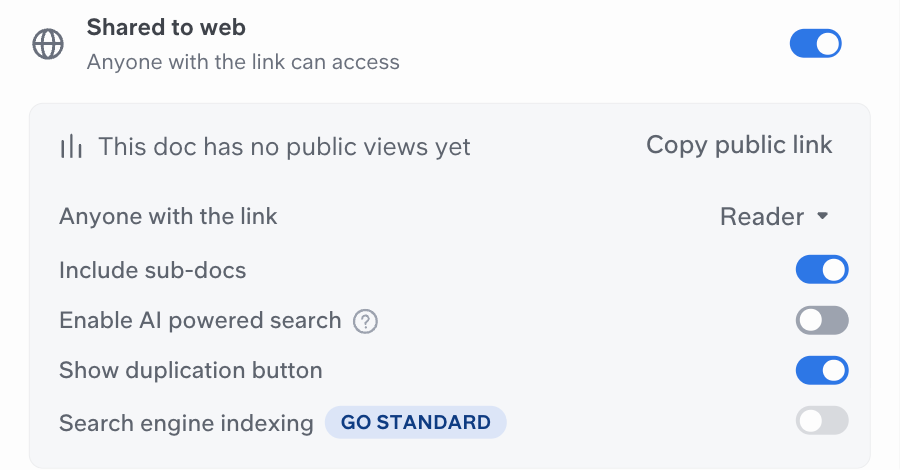
For example, in Slite, open the document and select Share. You can invite specific clients, partners, or contractors to collaborate, or use Share to web to publish it publicly. If you choose the public option, check these settings before copying the link:
- Who can access it: Under Anyone with the link, choose whether visitors can view or edit the page. View-only access is usually appropriate for published instructions. Disabling search engine indexing doesn't make the link private, so use invitations when access needs to be restricted.
- What else is included: Check Include sub-docs, since enabling it also makes nested pages accessible through the public page. Review those pages before turning it on.
- How visitors find answers: Turn on Search engine indexing if you want search engines to discover the page. You can also enable AI-powered search (Ask) so visitors can ask questions about the published documentation without accessing private workspace documents.
- Whether visitors can duplicate the page: Show duplication button controls whether visitors can copy the document into their own Slite account.
Before sharing the document, check the experience from outside your workspace. For a public page, open the link in a signed-out browser window; for invited collaborators, confirm what their account can access:
- Read it as an external visitor: Make sure the instructions make sense without access to your internal workspace, and test links to attachments and related pages.
- Check what's accessible: Confirm that only approved sub-documents and files are available, and that readers aren't directed to internal material they can't open.
- Test the optional features: If public Ask is enabled, try a typical customer question and check the response. Also confirm that the duplication button appears or stays hidden as intended.
Repeat these checks when permissions change, you add sub-documents, or you make significant updates to public instructions. In Slite, workspace admins can also audit which pages are publicly shared and who is allowed to publish them.
When do you need specialized public-facing documentation software?
For most customer guides and partner resources, your existing knowledge base may be enough. But depending on what you're publishing and how readers need to use it, you may need additional tools. These include:
Help desk software
Sometimes, a customer may follow a troubleshooting guide and still be unable to resolve the problem. They need to submit a support ticket and reach an agent.
Usually, help desk software manages ticket intake, routing, and escalation. Some tools also support ticket deflection by suggesting helpful articles before a customer submits a request.
For example, Zendesk can suggest relevant articles from a customer service knowledge base before someone submits a ticket, while Intercom can collect article feedback to help your team identify instructions that aren't resolving readers' questions.
With Slite, your internal knowledge base can support that workflow, too. If your team uses Intercom or Zendesk, Slite Agent's Chrome extension lets support agents access relevant internal knowledge while handling customer requests. It uses the conversation or ticket context alongside connected knowledge sources to suggest a response that agents can review before sending.
Versioned API documentation software
Software companies often support several API versions at once because not every customer can migrate as soon as a new version launches. Someone still using an older version needs instructions that match their integration, even after the latest version is released.
Specialized API documentation software can help teams with:
- Versioned references: Maintaining documentation for different supported API versions.
- OpenAPI-generated documentation: Generating API references from specifications and keeping them aligned with API changes.
- Interactive API playgrounds: Allowing developers to test requests and inspect responses directly from the documentation.
For example, at Slite, we use Mintlify for our API reference because it is built for versioned, developer-facing documentation.
Customer and partner documentation portals
If your company works with dozens of customers or partners, each with its own onboarding guides, implementation instructions, and project documentation, managing access through individual invitations will eventually become difficult as more organizations and users come on board.
A dedicated customer or partner documentation portal helps you to manage access at scale through single sign-on, group-based permissions, and controls that determine which resources each organization can see. Each customer or partner can then access the documentation intended for them without seeing another organization's information.
Make external documentation an extension of your knowledge base
You can share helpful documentation without creating another set of files your team must update whenever a product or process changes. Start with the knowledge you already maintain, then choose which information each audience should be able to see.
With Slite, you can:
- Publish selected workspace documents to the web, with separate controls for search indexing, included subdocuments, and duplication.
- Invite customers, partners, or contractors to specific documents or channels, with Reader or Writer permissions.
- Keep external readers on the current version as your team updates a shared document, without distributing a new file each time.
- Assign document owners, schedule verification, and use Slite Agent to investigate outdated or conflicting information for human review.
- Offer AI-powered search across the content you choose to publish for external readers.
If you’re planning to share product guides, onboarding materials, or partner documentation, book a demo. We can show you how to publish the right documents, manage external access, and keep the information current.
FAQs
What does public-facing mean in documentation?
Public-facing documentation is information made available to people outside an organization. It may be open to anyone or shared only with specified external readers.
What are customer-facing documents?
Customer-facing documents include onboarding guides, product instructions, integration references, FAQs, and troubleshooting articles that help customers evaluate, set up, and use a product.
Do public documentation pages need a custom domain?
No. Public documents can use the default URL provided by the documentation platform. A custom domain is optional, and Slite supports it on eligible plans alongside branding options for public pages.
Can AI tools and search engines use public documentation?
They may be able to, depending on the document’s public settings and the behavior of each crawler or tool. Slite has separate controls for search engine indexing and AI-powered search on public documents. Its public AI answers use the content published for external readers.